
Infinix USB Drivers Download for Windows (ADB, VCOM & CDC) – All Models
Which Infinix USB driver do you need? ADB, Fastboot, MediaTek VCOM and Unisoc explained, Windows setup, current models and fixes for a phone not detected.

Infinix USB drivers let a Windows PC recognise your Infinix phone or tablet so you can transfer files, run ADB and Fastboot commands, unlock the bootloader, install TWRP recovery or flash firmware. Most Infinix devices need one of three driver types – ADB, MediaTek VCOM or CDC – and the table below shows which one your model uses.
Added current Infinix models (Smart 8 to GT 50 Pro) with their chipsets, a “which driver do I need?” table, a Device Manager guide and a step-by-step fix for a phone that isn’t detected. The old third-party download links were removed earlier because they went offline.
Which Infinix USB driver do you need?
It depends on what you want to do, and for flashing, on the chip inside your phone. Find your task in the table:
| What you want to do | What you need | Notes |
|---|---|---|
| Copy photos, music or files | Nothing extra | Windows 10 and 11 load the MTP driver automatically. Choose File transfer on the phone. |
| Use ADB (USB debugging, installing apps, backups) | Google Platform-Tools + the ADB Interface driver | Windows often installs the driver itself. If not, follow step 4 of the install guide below. |
| Use Fastboot (unlock the bootloader, flash boot or recovery) | The same Platform-Tools and driver | In fastboot mode the phone shows as Android Bootloader Interface. |
| Flash firmware on a MediaTek phone (Helio or Dimensity chip) | MediaTek USB VCOM (PreLoader) driver + SP Flash Tool | Most recent MediaTek models only accept an authorised flashing tool, so home flashing often isn’t possible. See the stock ROM guide. |
| Flash firmware on a Unisoc phone (some Smart models) | Unisoc (SPRD) USB driver + Unisoc’s upgrade tool | Unisoc firmware comes as a single .pac file. MediaTek drivers and SP Flash Tool do not work with these phones. |
| Older model in preloader mode | CDC driver | Only some 2015 to 2017 models need it. See the older-models table below. |
Not sure which chip your phone has? Look up your model in the current models table below, or check the chipset on your phone’s spec page.
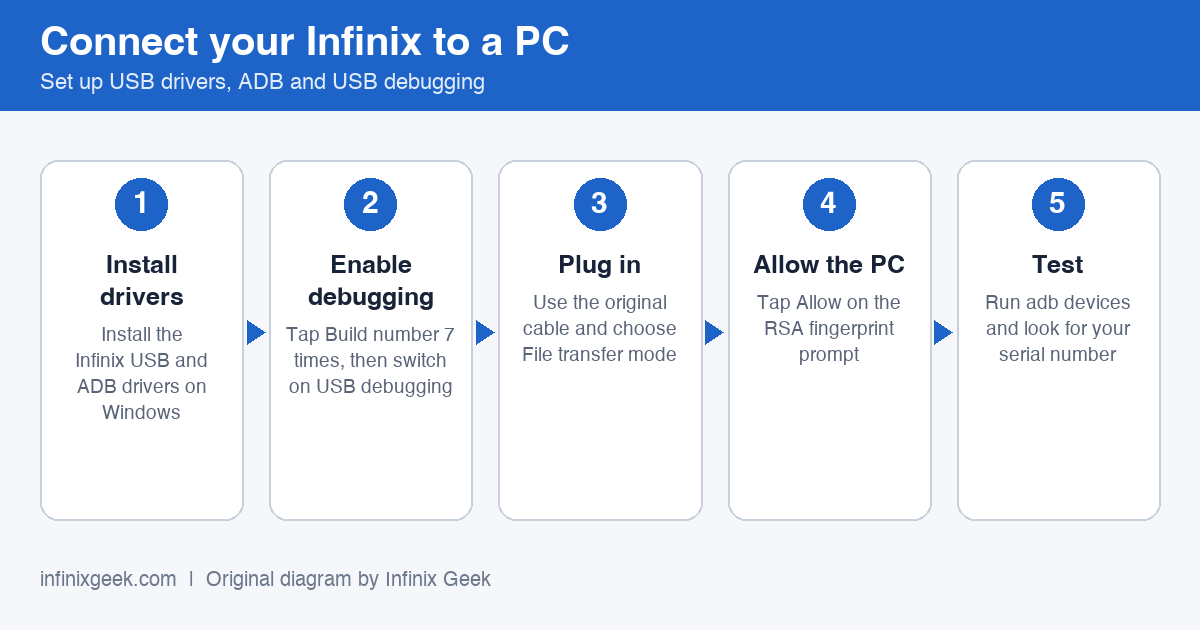
How to install Infinix USB drivers on Windows
- Download the official tools. Get the Android SDK Platform-Tools (ADB and Fastboot) from Google’s Platform-Tools page and unzip the folder, for example to
C:\platform-tools. - Enable USB debugging. On the phone open Settings → About phone, tap Build number seven times, then go to Settings → System → Developer options and switch on USB debugging. Menu names vary slightly between XOS versions.
- Connect the phone with a data-capable USB cable, choose File transfer (MTP) and tap Allow on the “Allow USB debugging?” prompt.
- Install the driver if Windows does not. Open Device Manager, right-click the Infinix device (often listed under Other devices with a yellow icon), choose Update driver → Browse my computer → Let me pick from a list and select the Android Device → ADB Interface driver. Google’s OEM USB driver page explains the process for Windows.
- Test the connection. Open Command Prompt inside the platform-tools folder and run
adb devices. Your device serial number followed by device means it works. For Fastboot, runadb reboot bootloaderand thenfastboot devices.
What you should see in Device Manager
Open Device Manager (right-click the Start button) while the phone is connected. The entry tells you whether the right driver is working:
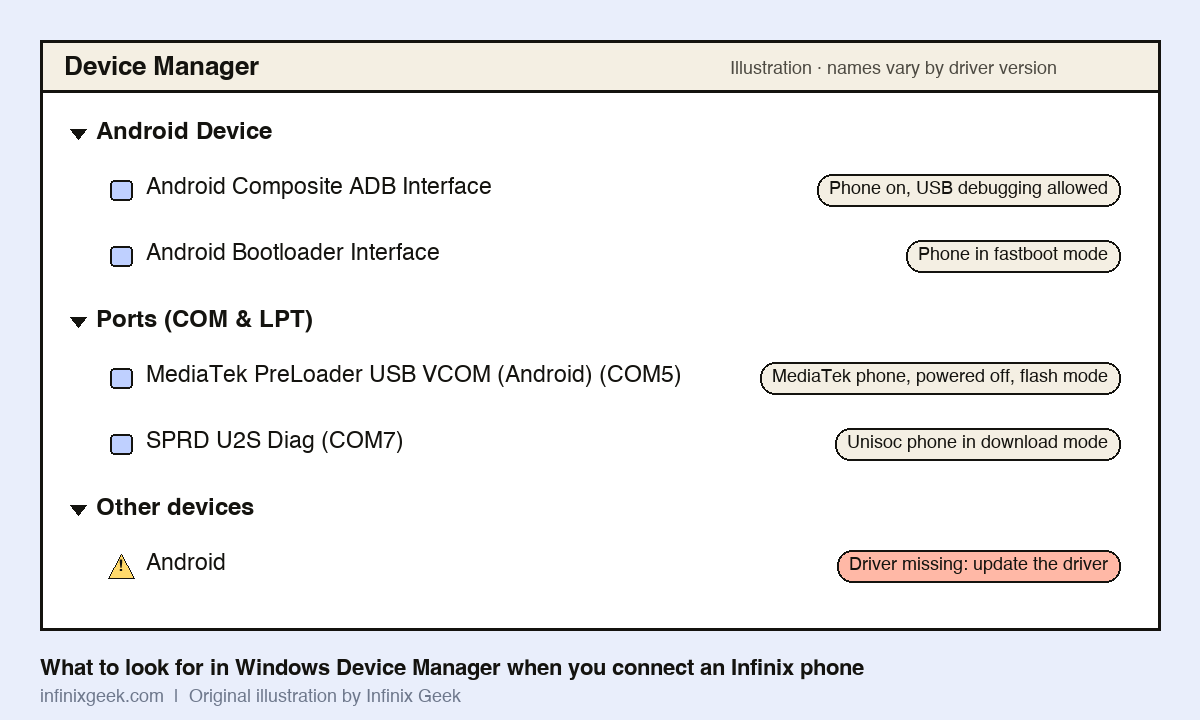
- Android Composite ADB Interface (under Android Device or Android Phone): ADB is working.
- Android Bootloader Interface: the phone is in fastboot mode and Fastboot will work.
- MediaTek PreLoader USB VCOM (under Ports): a powered-off MediaTek phone in flash mode. It only appears for a few seconds, so start the flash tool first, then connect.
- SPRD U2S Diag (under Ports): a Unisoc phone in download mode.
- A yellow warning icon under Other devices: the driver is missing. Right-click it and choose Update driver, as in step 4 above.
Current Infinix models (2024 to 2026): chip and flashing driver
Every model below uses the same ADB and Fastboot setup described above. The chip only matters when you flash firmware. Chipsets were checked on 20 November 2026; regional versions can differ, so confirm your exact model code under Settings > About phone.
| Model | Chipset | Driver for flash mode | Chip source |
|---|---|---|---|
| Infinix GT 50 Pro | MediaTek Dimensity 8400 Ultimate | MediaTek USB VCOM (PreLoader) | our 2026 roundup |
| Infinix GT 30 Pro | MediaTek Dimensity 8350 Ultimate | MediaTek USB VCOM (PreLoader) | GSMArena |
| Infinix Note 60 5G | MediaTek Dimensity 7400 Ultimate | MediaTek USB VCOM (PreLoader) | our Note 60 guide |
| Infinix Note 50 Pro+ 5G | MediaTek Dimensity 8350 Ultimate | MediaTek USB VCOM (PreLoader) | GSMArena |
| Infinix Note 50 Pro (4G) | MediaTek Helio G100 Ultimate | MediaTek USB VCOM (PreLoader) | GSMArena |
| Infinix Hot 70 | MediaTek Helio G100 Ultimate | MediaTek USB VCOM (PreLoader) | our Hot 70 guide |
| Infinix Hot 60 Pro / Pro+ | MediaTek Helio G200 | MediaTek USB VCOM (PreLoader) | GSMArena |
| Infinix Hot 50 Pro+ | MediaTek Helio G100 | MediaTek USB VCOM (PreLoader) | Smartprix |
| Infinix Smart 10 | Unisoc T7250 | Unisoc (SPRD) USB driver | GSMArena |
| Infinix Smart 9 | MediaTek Helio G81 | MediaTek USB VCOM (PreLoader) | GSMArena |
| Infinix Smart 8 | Unisoc T606 | Unisoc (SPRD) USB driver | iPrice spec page |
Recent MediaTek models (especially Dimensity phones) usually block flashing without an authorised account, so the flash-mode driver alone will not let you reinstall firmware at home. If one of these phones will not start, an authorised Infinix service centre is the safe option.
Older Infinix models (2015 to 2019)
The driver type each older model uses. Phones with a guide link have their own root or unlock walkthrough.
| Model | Driver type | Guide |
|---|---|---|
| Infinix Zero 4 | ADB | – |
| Infinix Note 2 LTE | ADB | – |
| Infinix Note 3 | ADB | Root / unlock guide |
| Infinix Zero 2 X509 | CDC + VCOM + ADB | – |
| Infinix Note 3 Pro | CDC + VCOM + ADB | – |
| Infinix Zero 3 | ADB | – |
| Infinix Zero 4 Plus | ADB | Root / unlock guide |
| Infinix Hot S X521 | CDC + VCOM + ADB | Root / unlock guide |
| Infinix Hot 3 LTE x553 | CDC + VCOM + ADB | – |
| Infinix Hot 3 X554 | CDC + VCOM + ADB | – |
| Infinix Hot 4 | ADB | Root / unlock guide |
| Infinix Hot 4 Pro X556 | CDC + VCOM + ADB | – |
| Infinix Hot 4 X556 | CDC + VCOM + ADB | Root / unlock guide |
| Infinix X601 | CDC + VCOM + ADB | – |
| Infinix Note 4 Pro (X571) | CDC + VCOM + ADB | Root / unlock guide |
| Infinix Note 4 (X572) | CDC + VCOM + ADB | Root / unlock guide |
| Infinix Note 5 | CDC + VCOM + ADB | Root / unlock guide |
| Infinix Note 5 Stylus | CDC + VCOM + ADB | – |
| Infinix S2 Pro | CDC + VCOM + ADB | – |
| Infinix X537 | CDC + VCOM + ADB | – |
| Infinix X260 | CDC + VCOM + ADB | – |
| Infinix X351 | CDC + VCOM + ADB | – |
| Infinix X401 | CDC + VCOM + ADB | – |
| Infinix X450 | CDC + VCOM + ADB | – |
| Infinix X454 | CDC + VCOM + ADB | – |
| Infinix X501 | CDC + VCOM + ADB | – |
| Infinix X503 | CDC + VCOM + ADB | – |
| Infinix X507 | CDC + VCOM + ADB | – |
| Infinix X510 | CDC + VCOM + ADB | – |
| Infinix X552 | CDC + VCOM + ADB | – |
| Infinix X554 | CDC + VCOM + ADB | – |
| Infinix X570 | CDC + VCOM + ADB | – |
| Infinix X800 | CDC + VCOM + ADB | – |
| Infinix X1000 | CDC + VCOM + ADB | – |
| Infinix X350 | CDC + VCOM + ADB | – |
| Infinix X403 | CDC + VCOM + ADB | – |
| Infinix X451 | CDC + VCOM + ADB | – |
| Infinix X500 | CDC + VCOM + ADB | – |
| Infinix X502 | CDC + VCOM + ADB | – |
| Infinix X506 | CDC + VCOM + ADB | – |
| Infinix X509 | CDC + VCOM + ADB | – |
| Infinix X551 | CDC + VCOM + ADB | – |
| Infinix X553 | CDC + VCOM + ADB | – |
| Infinix X400 | CDC + VCOM + ADB | – |
| Infinix X555 | CDC + VCOM + ADB | – |
| Infinix X600 | CDC + VCOM + ADB | – |
| Infinix X801 | CDC + VCOM + ADB | – |
| Infinix JoyPad 8S X801 | CDC + VCOM + ADB | – |
| Infinix Hot 5 Lite (X559) | CDC + VCOM + ADB | – |
| Infinix Hot 5 (X559C) | ADB | Root / unlock guide |
| Infinix Hot 4 Lite | ADB | – |
Infinix phone not detected on PC? Work through these steps in order
- Swap the cable and port. Charge-only cables are the most common cause. Use the original cable and a USB port directly on the PC (a rear port on a desktop), not a hub.
- Unlock the phone and pick the USB mode. Pull down the notification shade and choose File transfer. Some phones default to charging only.
- Check Device Manager. Compare what you see with the list above. A yellow warning icon means the driver is missing: install it as in step 4 of the install guide.
- “unauthorized” in
adb devices? Unlock the phone and accept the “Allow USB debugging?” prompt. If it never appears, tap Revoke USB debugging authorizations in Developer options and reconnect. - Empty list in
adb devices? Runadb kill-server, thenadb start-server, and check that USB debugging is still on. - Fastboot can’t see the phone? Make sure it is really in fastboot mode (
adb reboot bootloader) and shows as Android Bootloader Interface. If it shows with a warning icon, update the driver while the phone is in fastboot mode. - Flash tool can’t see a powered-off phone? MediaTek and Unisoc flash modes only appear for a few seconds. Start the tool and click Download (or Start) first, then connect the switched-off phone. Some models need a volume button held while you plug in.
- Still nothing? Try another PC. Security software and old driver versions can block the connection, and a fresh machine quickly shows whether the problem is the phone or the computer.
Frequently asked questions
Are Infinix USB drivers safe to install?
Yes, if they come from an official or well-known source. Avoid random .exe files from unknown download sites, and scan anything you download.
Do I need Infinix USB drivers on Mac or Linux?
No separate driver is needed on macOS. On Linux you may need udev rules for ADB. The same Platform-Tools download works on Windows, macOS and Linux.
Why does my Infinix phone charge but not connect?
Usually a charge-only cable, the wrong USB mode, or a missing driver. Work through the troubleshooting list above.
Which driver do Infinix Smart phones with Unisoc chips need?
For ADB and Fastboot, the same Google Platform-Tools setup as any other Infinix phone. For flashing firmware, Unisoc phones need the Unisoc (SPRD) USB driver and Unisoc’s own upgrade tool. MediaTek drivers and SP Flash Tool do not work with them.
Can I flash firmware on a new Infinix phone at home?
Often not. Most recent Infinix phones with MediaTek chips only accept firmware through an authorised flashing tool, so even with the right driver installed the flash will be refused. If a recent phone will not start, try a factory reset from recovery first, then contact an authorised Infinix service centre.
What do I do after installing the driver?
Most people go on to unlock the bootloader, root the phone, or reinstall the stock ROM.
شكرا جزيلا انا فى انتظار ردكم الموقر ولكم خالص تحياتى
pls sir you have not added infinix hot 6 pro 608 USB driver to the list.
thanks
Adding it soon.
Thanks for the notification.
you have not added infinix smart 2 X5515
HEY , HOPE YOU ARE GOOD . PLEASE INFINIX HOT 6X X623 USB DRIVER AND ROM NEED TO FLASH
What About Infinix Note 40 Pro?
Window downloading