

Well!!. If you are here, then you probably have an Infinix smartphone and that you’re here to unlock bootloader on your smartphone.
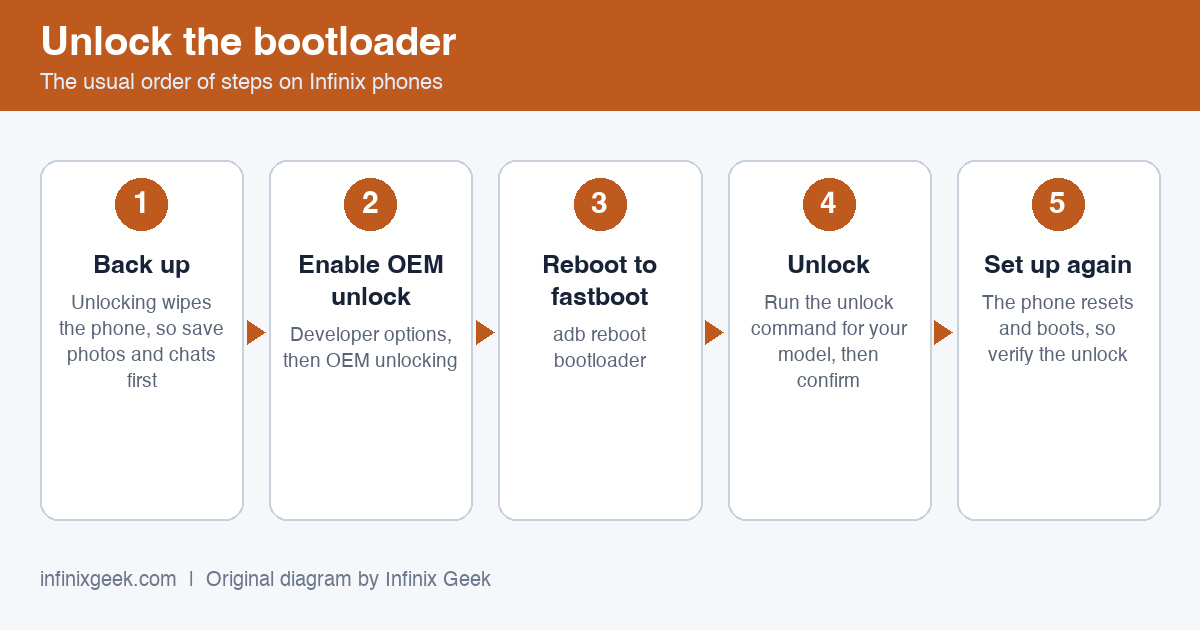
Well before moving to step by step guide to unlock bootloader on your Infinix Device. First, let me make things more precise and clear.
By unlocking bootloader, you will lose the warranty of your device. So please don’t blame this website.
So well, let’s begin the full guide to
Unlock Bootloader On Infinix Devices
If you are always opting to install Root, Custom Recovery or any Custom ROM, then your phone must be unlocked.
So here is the full guide to unlock bootloader on any Infinix Device. If you unlock the bootloader you may void the warranty.
Follow this guide on How to unlock bootloader on Infinix Devices. Try this only on Infinix Devices. This method to unlock bootloader on Infinix Device is simple to follow. But please do read the steps below carefully.
What is Unlock Bootloader?
A Bootloader is a code which runs when we turn on our device. This code initializes some hardware and then loads the kernel and ramdisk, and gets the boot process going.
So this process is known as Bootloader. The same concept applies to all the technical stuff such as Laptop, PC, Smartphones and any such device.
Every Android OEM manufacturers lock the bootloader even though it is an Open Source. So if you want to try any CUSTOM ROM, it is impossible to load the CUSTOM ROM without the Unlock Bootloader.
So Manufacturer made a policy of making the smartphone with Unlocked Bootloader void its warranty. They want you to stick with the Stock ROM.
Unlocking Bootloader allows you to Root your Android smartphone, Flash TWRP and Custom ROM in a simple easy method. Share on XBefore doing the methods,
I just want to warn you that. By doing this, you will lose the warranty and sometime if you don’t read the steps and do something wrong, it can brick your device.
So read carefully before doing anything.
What you need:
- You need a Laptop or PC
- Working USB Cable
- Charge your phone to at least 70%
- Download Infinix VCOM Drivers
- Make sure that you have the latest USB drivers installed.
- Download the ADB Fastboot tools.
- Take a complete backup of your phone and then proceed.
1st Method:
Like I said, In some Infinix devices have an option to unlock bootloader. To do this, Go to Settings > Developer options or in Settings > About Phone and turn OFF “OEM Lock”.
Note: If there is no such options follow below methods :
2nd Method:
Sometime, 3rd Party developer or Manufacturer itself will release tool to Unlock bootloader on their device. Like ajua Custom Installers, xda developers etc.
3rd Method:
- First of all, You need the unlock code, which you can get by contacting the manufacturer, some manufacturers don’t provide the code so you are out of luck
- Once you get the code you can enable the Developer Option
- To Enable the Developer Option, Go to your Settings -> About -> Software Information -> More -> Now Tap on the Build Number 7-8 Times until you see a toast message “Developer option enabled”
- Go back to settings -> Now you need to enable the OEM Unlock by going to Settings -> Developer Option and Enable OEM Unlock and USB Debugging
- Download and Extract the Downloaded ADB fastboot Zip file on your PC
- Now connect your phone to Computer using USB Cable.
- When you connect your Phone to Computer, please wait until all the drivers get installed.
- In your ADB fastboot folder open a command prompt window by pressing Shift Key + Right Mouse Click
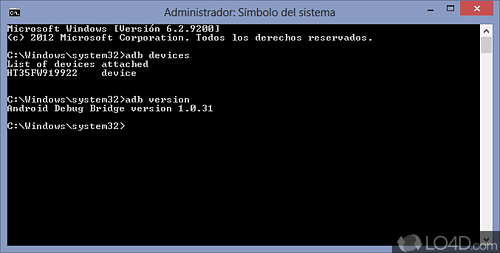
- Now type the command in your command window
adb devices
- If you see a pop up to allow USB Debugging on your phone, Click OK
- Now type the command below to reboot your phone to bootloader
adb reboot bootloader
- Once your phone reboot into bootloader, make sure your phone shows the bootloader locked and then type the command below to make sure fastboot drivers are installed properly.
fastboot devices
- This command will list the connected devices. If your phones serial number shows up you are good to go and may continue. If the phone is NOT listed this indicates that your drivers are not installed correctly. In order for you to continue you must fix your drivers so that your phone is listed under fastboot devices.
- If the phone has been recognized by the command above, proceed to unlocking the bootloader with the following command:
fastboot oem unlock
Remember that this step will wipe EVERYTHING off the phone
- After the above command has finished executing, run the following
fastboot reboot
- The phone will reboot. Wait until the phone has fully booted up into android, and enjoy!
I hope you have successfully Unlocked Bootloader on your Infinix phone.
4th Method:
In some infinix devices bootloader can be easily be unlocked using the following method :
- First of all, enable the Developer Option
- To Enable the Developer Option, Go to your Settings -> About -> Software Information -> Build Number, Now Tap on the Build Number 7-8 Times until you see a toast message “Developer option enabled”
- Go back to settings -> Now you need to enable the OEM Unlock by going to Settings -> Developer Option and Enable OEM Unlock and USB Debugging
- Download and Extract the Downloaded ADB fast boot Zip file on your PC
- Now connect your phone to Computer using USB Cable.
- When you connect your Phone to Computer, please wait until all the drivers get installed.
- In your ADB fastboot folder open a command prompt window by pressing Shift Key + Right Mouse Click
- Now type the command in your command window
adb devices
- If you see a pop up to allow USB Debugging on your phone, Click OK
- Now type the command below to reboot your phone to bootloader
adb reboot bootloader
- Once your phone reboot into bootloader, make sure your phone shows the bootloader locked and then type the command below to make sure fastboot drivers are installed properly.
fastboot devices
- This command will list the connected devices. If your phones serial number shows up you are good to go and may continue. If the phone is NOT listed this indicates that your drivers are not installed correctly. In order for you to continue you must fix your drivers so that your phone is listed under fastboot devices.
- If the phone has been recognized by the command above, proceed to unlocking the bootloader with the following command:
Remember that this step will wipe EVERYTHING off the phone
fastboot oem unlock ****************” (replace * with 16 digit unlock code)
- Check if bootloader is unlocked using the below commands
fastboot oem get-bootinfo
- If it says your bootloader is unlocked you can proceed, run the following
fastboot reboot
- The phone will reboot. Wait until the phone has fully booted up into android, and enjoy!
I hope you have successfully Unlocked Bootloader on your Infinix phone.
Note: All the data on the phone will be loosed once the bootloader unlocks on the device. Moreover, there will be a chance to forfeit the warranty of the device.
Conclusion
Unlocking a phone bootloader should be done perfectly without any mistake so that it won’t affect the running of the device.
Hence, when done with care, you have the chances of installing any preferred package like a new Os and getting privileges over the manufacturer’s limitation.
Be sure to check out all my other articles on rooting infinix smartphones.
More Infinix guides
- Before you start: install the Infinix USB drivers and keep the stock ROM handy as a backup plan.
- Root & unlock guides for all Infinix phones