
Infinix Stock ROM (Firmware) Download Guide – All Models & How to Flash
Infinix stock ROM guide: what to try before flashing, a firmware safety checklist, MediaTek vs Unisoc tools, current models and safe flashing steps.

An Infinix stock ROM (also called firmware) is the original Android and XOS software your phone shipped with. Reinstalling it is the standard fix for a bricked phone, a bootloop, a forgotten pattern lock or a failed root attempt. This guide explains where to get firmware safely, what you need before flashing, and how the process works for every Infinix model on our list.
Added a “try these first” checklist, a firmware safety checklist, the right flashing tool for MediaTek and Unisoc phones, current models from Smart 8 to GT 50 Pro, and answers on IMEI and Google account (FRP) locks. Infinix Geek does not host firmware files; the old third-party mirror links were removed because they went offline.
Should you flash at all? Try these first
Flashing firmware erases your phone and carries a real risk of leaving it unable to start. Most software problems are fixed by something simpler, so work through these steps in order and only flash when nothing else works.
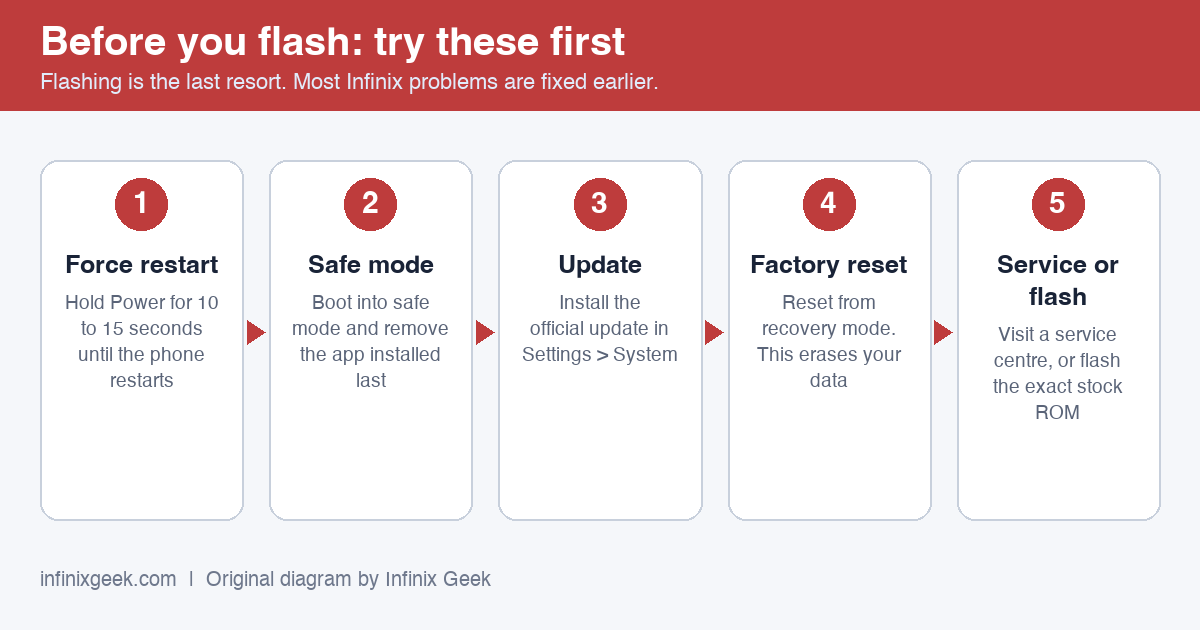
- Force restart. Hold the power button for 10 to 15 seconds until the phone restarts. This clears most freezes.
- Safe mode. Hold the power button, then press and hold Power off until the safe mode prompt appears. If the phone works in safe mode, an app is the cause: uninstall the one you installed last.
- Official update. If the phone starts, install the latest build under Settings > System > Software update. Updates often fix the bug you are seeing.
- Factory reset from recovery. Power off, hold Volume Up and Power to enter recovery, and choose Wipe data / factory reset. This erases your data but leaves the system software intact, and it fixes most bootloops.
- Service centre or flash. If none of that works, an authorised Infinix service centre can reinstall the firmware for you. Flash it yourself only if you can get the exact stock ROM for your phone and your model allows home flashing (see the tables below).
Before you flash: what you need
- The correct firmware for your exact model number (Settings → About phone). Flashing the wrong file can hard-brick the phone.
- Infinix USB drivers installed on a Windows PC, including the MediaTek VCOM driver.
- A flashing tool. Most MediaTek Infinix phones use SP Flash Tool – see our Infinix Flash Tool guide.
- A backup of your photos, contacts and apps. Flashing normally erases the phone.
- At least 50% battery and a reliable USB cable.
Check the file before you flash: firmware checklist
A wrong or tampered file is the most common way phones get bricked. Before you use any firmware package, confirm all of these:
- Exact model code (for example X6871), not just the marketing name. Find it under Settings > About phone or on the box.
- Variant and region. Some models have different builds by country, network or RAM size.
- Build number. Use the same build as your phone or a newer one. Going back to an older build can fail on newer security patches.
- Chip and file format. MediaTek firmware uses a scatter file; Unisoc firmware is a single
.pacfile. They are not interchangeable (see the table below). - Source and integrity. Know where the file came from. If the source lists a file size or an MD5/SHA checksum, compare it with your download.
- No installers. A firmware package contains image files. Never run an .exe that came inside a firmware download.
Where to get Infinix firmware safely
- Over-the-air update. If the phone still boots, go to Settings → System → Software update to install the latest official build.
- Official Infinix channels. Check the official Infinix website for your country and model, or visit an authorised Infinix service centre.
- Be careful with third-party sites. If you use one (see Hovatek below), firmware mirrors are often bundled with adware. Only download files that match your model number and scan every archive before opening it.
Unofficial firmware source: Hovatek forum
Hovatek is a long-running community forum that posts stock ROM threads for many Infinix models, usually in scatter format for SP Flash Tool. Some newer files are in .pac format and need Research Download or Upgrade Download tools instead. Hovatek is not run by Infinix, so Infinix Geek cannot guarantee any file you download there.
- Open Hovatek’s Android Firmware, Files & Tools section and search for your exact model number (for example the X-number under Settings → About phone).
- Check that the thread’s model and variant match your phone, and that the file format (scatter or .pac) matches your flashing tool.
- Scan the archive before opening it, and do not run any installer that is not part of the firmware package.
- Back up your data first. Flashing normally erases the phone.
Older phones in the table below, from 2015 to 2018, may not have a current thread. If you cannot find yours, try your phone’s over-the-air update or an authorised Infinix service centre.
Which flashing tool does your phone use?
| Chip in your phone | Firmware format | Tool and driver |
|---|---|---|
| MediaTek (Helio or Dimensity) | Folder with a MTxxxx_Android_scatter.txt file and image files |
SP Flash Tool with the MediaTek USB VCOM (PreLoader) driver |
| Unisoc (some Smart models) | One .pac file |
Unisoc Upgrade Download or Research Download tool with the Unisoc (SPRD) USB driver |
Both drivers are explained in our Infinix USB drivers guide, which also lists the chip in each current model.
How to flash Infinix stock firmware (overview)
MediaTek phones (scatter firmware): overview
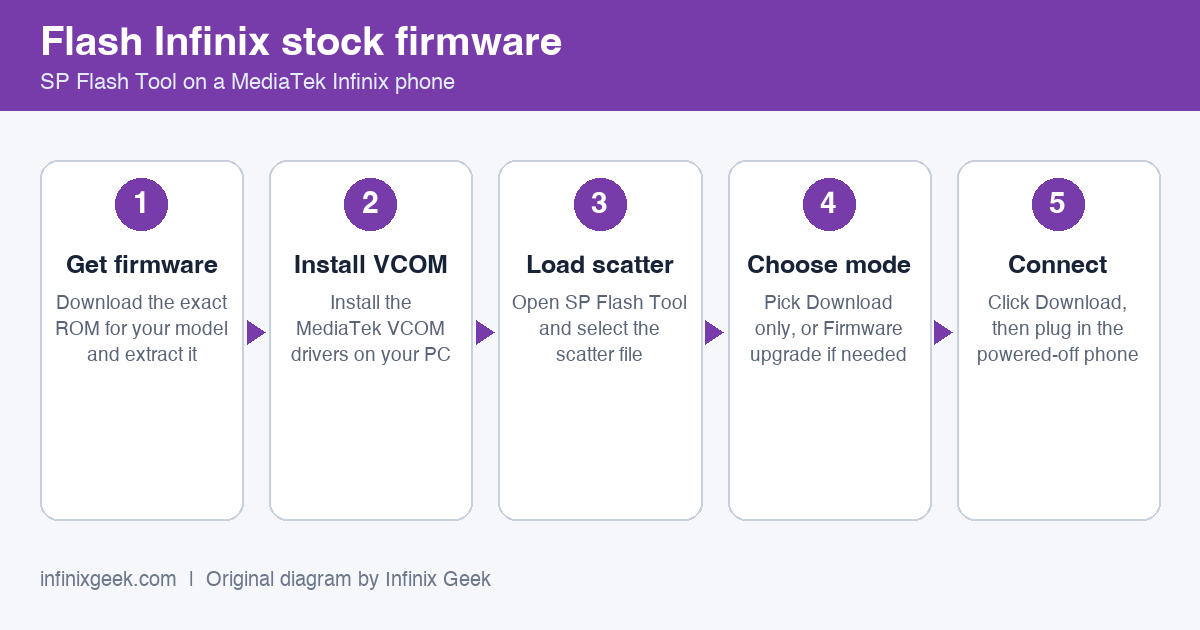
- Extract the firmware archive on your PC. It should contain a scatter file and the image files.
- Install the USB and MediaTek VCOM drivers and open the flash tool.
- Load the scatter file, choose Download Only mode and click Download.
- Power the phone off, connect it with the USB cable and wait for the progress bar to finish.
- Disconnect, hold the power button to boot and wait for the first start, which can take several minutes.
Avoid the Format All + Download option unless you know what you are doing, because it can wipe the calibration data (IMEI and Wi-Fi).
Unisoc phones (.pac firmware): overview
- Install the Unisoc (SPRD) USB driver on your PC.
- Open the Unisoc Upgrade Download or Research Download tool and load the
.pacfile for your exact model. - Click Start (the play button), then connect the switched-off phone. Some models need a volume key held while you plug in.
- Wait until the tool reports that the flash passed, then disconnect and start the phone. The first boot can take several minutes.
Current Infinix models (2024 to 2026): firmware format and home flashing
Chipsets were checked on 20 November 2026 (sources are in our USB drivers guide). Regional versions can differ, so always confirm your exact model code.
| Model | Chipset | Firmware format | Flashing at home |
|---|---|---|---|
| Infinix GT 50 Pro | MediaTek Dimensity 8400 Ultimate | Scatter (SP Flash Tool) | Usually blocked without an authorised tool: use a service centre |
| Infinix GT 30 Pro | MediaTek Dimensity 8350 Ultimate | Scatter (SP Flash Tool) | Usually blocked without an authorised tool: use a service centre |
| Infinix Note 60 5G | MediaTek Dimensity 7400 Ultimate | Scatter (SP Flash Tool) | Usually blocked without an authorised tool: use a service centre |
| Infinix Note 50 Pro+ 5G | MediaTek Dimensity 8350 Ultimate | Scatter (SP Flash Tool) | Usually blocked without an authorised tool: use a service centre |
| Infinix Note 50 Pro (4G) | MediaTek Helio G100 Ultimate | Scatter (SP Flash Tool) | Usually blocked without an authorised tool: use a service centre |
| Infinix Hot 70 | MediaTek Helio G100 Ultimate | Scatter (SP Flash Tool) | Usually blocked without an authorised tool: use a service centre |
| Infinix Hot 60 Pro / Pro+ | MediaTek Helio G200 | Scatter (SP Flash Tool) | Usually blocked without an authorised tool: use a service centre |
| Infinix Hot 50 Pro+ | MediaTek Helio G100 | Scatter (SP Flash Tool) | Usually blocked without an authorised tool: use a service centre |
| Infinix Smart 10 | Unisoc T7250 | .pac (Unisoc tool) | Usually possible with the official .pac file for your exact model |
| Infinix Smart 9 | MediaTek Helio G81 | Scatter (SP Flash Tool) | Usually blocked without an authorised tool: use a service centre |
| Infinix Smart 8 | Unisoc T606 | .pac (Unisoc tool) | Usually possible with the official .pac file for your exact model |
Recent MediaTek phones check that the flashing tool is authorised before they accept firmware, so SP Flash Tool on its own will usually be refused. That protection exists to stop stolen phones being reset, and there is no safe home workaround. An authorised Infinix service centre can reflash these models.
Older Infinix models: original Android version (reference)
The original Android version of older Infinix phones, kept for reference. File sizes come from our earlier list and are approximate; we do not host these files.
| Model | Stock Android version | Firmware size |
|---|---|---|
| Infinix Hot X507 | 5.0 | 751 MB |
| Infinix Zero 1 X506 | 4.4 & 5.0 | 814 MB + 768 MB |
| Infinix Zero 2 Pro LTE X509 | 5.0 | 894 MB |
| Infinix Zero 2 X509 | 5.0 | 858 MB |
| Infinix Hot 3 X554 | 5.1 | 1.3 GB |
| Infinix Hot 2 X510 | 5.0 & 6.0 | 937 MB + 735 MB + 938 MB |
| Infinix Zero 3 X552 | 5.0 | 1.4 GB + 1.4 GB |
| Infinix Hot Note X551 | 5.0 | 1 GB + 2 GB |
| Infinix Hot Note 2 X600 | 5.0 & 6.0 | 1.3 GB + 1.2 GB + 1.3 GB + 1.4 GB + 1.4 GB + 1.3 GB |
| Infinix Joypad 10 X1000 | 4.2 | 566 MB |
| Infinix Surf Smart X350 | 4.1 | 174 MB |
| Infinix Alpha Marvel X502 | 4.2.1 | 505 MB |
| Infinix Race X400 | 4.0 | 335 MB |
| Infinix Surf Smart X351 | 2.3 | 311 MB |
| Infinix Surf Space X403 | 4.2 | 499 MB |
| Infinix Alpha X570 | 4.1.2 | 556 MB |
| Infinix Joypad 8s X801 | 4.2.1 | 540 MB |
| Infinix Joypad 8 X800 | 4.0 | 534 MB |
| Infinix Race Lite X401 | 2.3.5 | 203 MB |
| Infinix Race Bolt Q X451 | 4.2 | 476 MB |
| Infinix Race Bolt X450 | 4.0 | 268 MB |
| Infinix Surf Bravo X503 | 4.2 | 449 MB |
| Infinix Race Jet X501 | 4.2 | 440 MB |
How to choose the right firmware
Most flashing problems start with the wrong file, not the wrong tool. Check three things before you download anything. First, the exact model code, which is printed on the box and under Settings > About phone (for example X522 or X606). Second, the variant, because some models have separate builds for different regions or for 1 GB and 2 GB RAM versions. Third, the Android version you want, since going back to an older build than the one installed can fail on newer security patches.
If your model has several builds, pick the one released closest to the build you are already running. When two files look identical, the newer one is usually safer, but never mix files from two different downloads. A scatter file from one build and images from another is a common cause of bootloops.
Fixing common flashing problems
- The phone is not detected. Reinstall the MediaTek VCOM driver, use a different USB port (a rear port on a desktop works best) and try the original cable. Power the phone fully off first, then connect it only after you click Download.
- The progress bar never starts. This usually means a driver or cable fault. Unplug the phone, close the tool, reopen it as administrator and repeat the steps.
- The tool reports a partition or scatter mismatch. Stop. This almost always means the firmware is for a different model or variant. Recheck the model code before trying any option that formats the whole phone.
- The phone boots but loops on the logo. Do a factory reset from recovery (power off, then hold volume up and power) and, if that fails, reflash the full firmware once more.
After you flash: first steps
The first boot can take five to ten minutes, so leave the phone alone. When it starts, check that the IMEI shows under Settings > About phone > Status, that Wi-Fi and Bluetooth turn on, and that the camera opens. If the IMEI is missing, you probably formatted calibration data and will need your NVRAM backup or a repair service. Then restore your backup, install updates over Wi-Fi and take a fresh backup of the working phone so the next problem is easier to undo.
Frequently asked questions
Will flashing stock firmware remove root?
Yes. It replaces the system partition, so you will need to root again. See our root guides.
Can flashing the stock ROM fix a bootloop?
In most cases, yes. It restores the original software and clears the data that was causing the loop.
Does flashing relock the bootloader?
No. If you unlocked it earlier, it stays unlocked unless you relock it separately. See how to unlock the bootloader on Infinix devices.
My IMEI is missing after flashing. What now?
The flash most likely erased the phone’s calibration data. Restore your own NVRAM backup if you made one, or take the phone to an authorised service centre. Never install an IMEI from another device or change the number: it is illegal in many countries and can get the phone blocked by your network.
Will flashing remove a forgotten Google account lock (FRP)?
Don’t rely on it. Factory Reset Protection is an anti-theft feature that is designed to survive resets. Sign in with the Google account that was on the phone, or take the phone and your proof of purchase to an authorised Infinix service centre.
Is the firmware linked from this page official?
Infinix Geek does not host any firmware. Over-the-air updates and authorised service centres are the only official sources. Community sites such as Hovatek are not run by Infinix, so check every file against the checklist above.
can’t find my infinix hot 6 X600D
Pls i need Infinix-R9 Firmware download link,
i beg i want infinix f 168 firmware download
I can’t find infinix x5010 on your list
cannot find Infinix X678B