

Infinix Flash Tool is a small application that allows you to flash stock firmware on any Mediatek Smartphone and Tablets.
The Infinix Flash Tool is also a PC software used to flash any type of ROM on Android phones using MTK (Mediatek) processor. This application is similar to SP Flash Tool and works perfectly for installing new firmware too.
Here, on this page we have managed to share the latest version of Infinix Flash Tool along with the previous releases.
Requirements
- PC
- An Infinix phone
- Download Infinx Flash Tool
- Download the Stock ROM for your Infinix phone model
- Download MediaTek USB VCOM drivers on the PC
Features of Infinix Flash Tool
1. Portable Application
It comes as a portable application, which means it doesnt need to be installed on the computer to use it. Simply extract the downloaded package and open flash_tool.exe to launch it.
2. Simple Interface
It comes with very easy interface and less buttons to get confused with. On the main panel there is only three buttons available i.e Browse, Start and Stop. Browse button allows you to add the Scatter file, Start Button allows you to begin the flashing process and using the Stop Button you can Stop the flashing process anytime.
- Flashing all models of infinix phones without box,
- Supporting all models of infinix phones,
- Unlocking all infinix models,
- Flash stock rom firmware of all infinix phone models,
- Flash stock firmware of all mediatek phones,
- Supporting various of windows devices,
- Easily connecting with operating system,
- USB Driver supporting various of windows devices,
- USB Driver supporting all infinix phone models to connecting with pc,
- USB Driver supporting all Mediatek smart phones and tablets to connecting with pc,
- Flashing all kind of software issues
3. Flash Stock Firmware
It allows you to flash stock firmware on any Mediatek Feature Phone, Smartphone and Tablets in a click only. Simply, load the scatter file using the browser button and click on start button to begin the flashing process.
4. CDC and VCOM Compatible
It supports Android CDC and Android VCOM drivers to flash the stock firmware on Mediatek Device. You need to install either CDC or VCOM Driver on your computer to get your device detected by the Infinix Flash Tool.
How To Use Infinix Flash Tool To Flash ROM on Mediatek Devices on PC

Are you looking to learn how to use Infinix Flash Tool to flash stock firmware or ROM on any Mediatek smartphone and tablets?
The Infinix Flash Tool is a PC software used to flash any type of ROM on Android phones using MTK (Mediatek) processor. Share on XThis application works perfectly for installing new firmware easily.
This article is all about Infinix FlashTool, so I will share with you a simple beginner guide on how to use Inifnix Flash Tool for the first time.
NOTE: Make sure you only flash the ROMs that are made specifically for that phone.
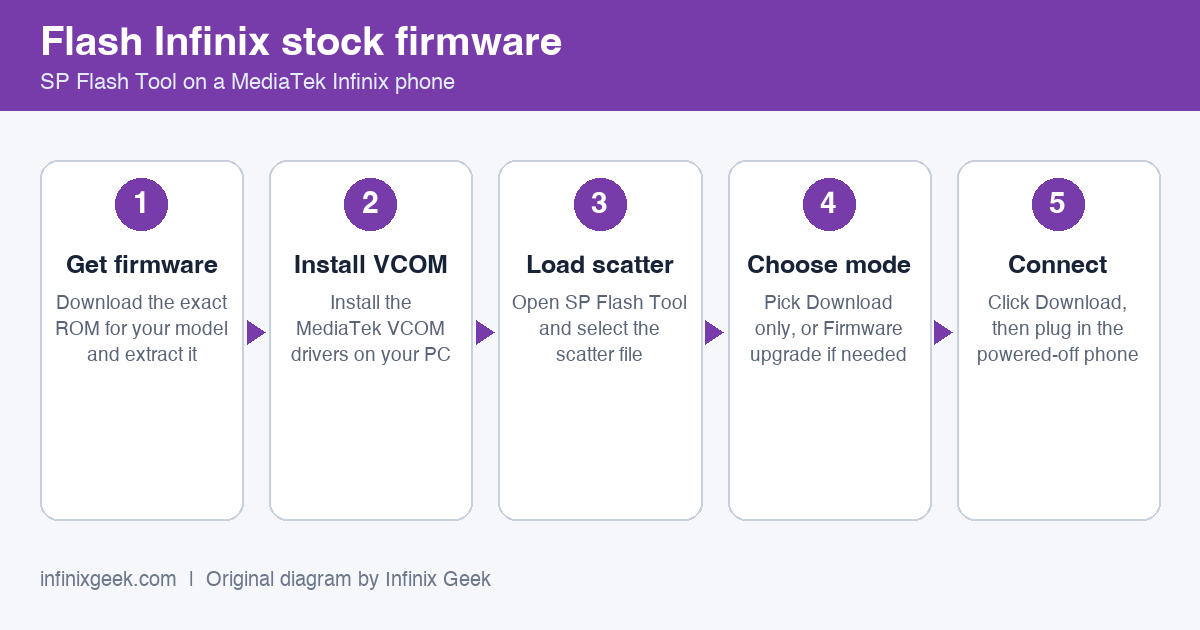
Step 1
Install the downloaded latest Infinix Flash Tool
Download your phone’s stock ROM you wish to flash. (If you already have it, then skip this part)
Install VCOM driver on PC.
Step 2
Extract and install Infinix_Flash_Tool.zip on your PC. (This file is compressed in.zip format, so you’d need a WinRar or other zip extractor to extract the file within)
Also, extract Infinix or other MTK devices’ stock ROM you wish to flash.
Step 3
Run Infinix Flash tool as Administrator. You should now see the tool’s Dashboard » Click Brower (with a folder icon)
Step 4
In the window that pops up, navigate to the stock ROM folder, select the SCATTER FILE and click Open. (The file path should now appear in front of Infinix-bin-loading File) » Click Start.
Step 5
Start should now be greyed out and Stop green in colour.
Step 6
Turn off your phone and connect it to the PC using a good USB cord (with battery inside); flashing should begin immediately.
Step 7
You should get a green OK prompt upon completion.
Step 8
Disconnect your phone then boot it. If the phone gets stuck at the logo (and you flashed the correct ROM) then removed the battery and slot it back in. If the battery is inbuilt then do a factory reset in recovery mode.
N.B: Make sure you orderly follow these steps without missing any step for best result.
Verdict
This tool is very simple to use provided all guidelines are followed. It works on all Mediatek devices only. If your Infinix device runs on a different chipset like spreadtrum or qualcomm then this isn’t a tool for you.
Infinix SP Flash tools requires a scatter file in order to flash. This is not to say that it is only the scatter file that will be required or needed for the flash process.
Do not mistake a scatter file for firmware or stock rom. A scatter file is just one of the files contained in the firmware.
Some users have credited Infinix Flash tool as being able to flash some firmware which give errors in SP Flash tool, so consider using this tool first.
It’s necessary you only flash the firmware for your phone model and build number. Doing otherwise could brick the device.
The only function which Infinix flash tool has is the equivalent of download only in SP Flash tool. Should you require using more features, then consider using the tools.
NOTICE: Do not interrupt flashing, if you accidentally interrupt and the phone goes dead. Then your phone might not pass the boot animation ( The Infinix Logo ). Thus when turned back on , the device would have been bricked which might not be able to be resolved.
More Infinix guides
- Want to customise this phone? See our root and bootloader unlock guides.
- 10 Amazing Features and functionalities You'll Love About Infinix Phones
- 10 key features of Android 8.0 Oreo on Infinix devices
- Review: Infinix 3.0 User Interface – Humming Bird
- Review: Infinix XOS Chameleon Features and Specs
- All Infinix reviews & comparisons
“\n
Common Infinix Flash Tool problems and fixes
\n
- \n
- Device not detected: install the MediaTek VCOM driver, use the original cable and a direct USB port, and keep the phone powered off until you click Download.
- The tool shows a partition or scatter mismatch: stop and check that the firmware matches your exact model code. Do not force a full format to get past it.
- The flash stops partway: the cable or port was likely unstable. Close the tool, reconnect and run the whole download again from the start.
- The phone will not boot afterwards: boot into recovery and do a factory reset, then reflash if it still loops.
\n
\n
\n
\n
\n
Safety tips before you flash
\n
Charge the phone to at least 50 percent, back up your data and, if possible, back up the NVRAM partition so you can restore your IMEI. Only flash firmware made for your exact model, and never unplug the phone while the progress bar is moving. Flashing erases the phone in most modes, so treat it as a last resort after simpler fixes such as a restart, a safe-mode check and a factory reset have failed.
\n”