

If you are looking for a proper guide to Root Infinix Note 4 (X572), then you are at the right place.
Since TWRP is the best custom recovery available in the market,i will guide you on how to install TWRP and Root Infinix Note 4. Installing TWRP can be beneficial for the users as TWRP is not only used to install root directories but it is used as a tool to install the system files and update manually on the phone.
If you want to install and root Infinix Note 4 then you have to follow this guide.
Infinix Note 4 is an amazing device that was launched in August 2017. The phone comes with a 5.70-inch touch screen display with a resolution of 1080 pixels by 1920 pixels at a PPI of 387 pixels per inch.
The Infinix Note 4 is powered by 1.3GHz quad-core Mediatek MT6753 processor and it comes with 3GB of RAM. The phone packs 32GB of internal storage that can be expanded up to 128GB via a microSD card.
The Infinix Note 4 runs and is powered by a 4300mAh non removable battery. The Infinix Note 4 is a dual SIM (GSM + CDMA and GSM + CDMA) smartphone that accepts Micro-SIM and Micro-SIM. Connectivity options include Wi-Fi, GPS, Bluetooth, USB OTG and 4G (with support for Band 40 used by some LTE networks in India).
Sensors on the phone include Compass Magnetometer, Proximity sensor, Accelerometer, Ambient light sensor and Gyroscope. As the phone specs are perfect to handle the new version of TWRP so you are good to install it and enjoy.
Consider reading my full review in Infinix Note 4.
Rooting gives you a full access to customize your device like you want plus it gives you permission to perform suspicious activities with your smartphone but sometimes it can cause damage so after rooting your smartphone use it wisely. Follow this guide correctly so to root your smartphone perfectly otherwise you may end up bricking your device.
Infinix Note 4 (X572) gives you additional benefits like you can install , flash custom ROMs , you can streamline your and many extra features. The real performance of an Android smartphone can only be unlocked once it is rooted. Share on XRooting your Infinix Note 4 (X572), lets the user flash different Custom MODs, ROMs, and such stuff onto the device.
Now here we come with a full working guide on how to install TWRP Recovery and Root Infinix Note 4 (X572) .

While rooting you have to be very careful and proceed with great caution, anything wrongs you may get your device bricked.
If you want to root your device without PC or Laptop using one click root tools, then you can follow our guide linked below.
PRE-REQUIREMENTS
Make sure battery percentage is more than 60%
Make sure you have installed USB Drives on your PC.
Install ADB & Fastboot drivers on your computer.
Now Enable Developer option.
Create an android backup on your device
If you are new to TWRP recovery and rooting then here i first share some facts about Android rooting.
After rooting your device you can install different MODs, kernel, ROMs on your device. You can install latest (like the Android 7.0 Nougat) On old device by installing third party ROMs like.
You can overclock the CPU and GPU of your device to get the best performance. You can hibernate any app you want. You can underclock the CPU to get better battery life.
Requirements:
ADB & Fastboot on your PC
MT6757_Android_scatter.txt
Magisk15.3.zip
Note 4 Twrp_recovery Indian.zip
Warning: Unlocking your bootloader will perform a factory reset on your device, please backup all of your important data before proceeding.
- Go to Settings > About Phone > tap on Build Number 7 times, until Developer Mode is activated.
- Now go to Settings > Developer Options > Enable USB Debugging and OEM Unlocking.
- Connect your Infinix Note 4 to your PC via USB, and accept the ADB pairing dialogue on your phone’s screen.
- Go into the main folder of your ADB installation, hold Shift + right click, and select “ Open a Command Window Here”.
- In the ADB command window, type the following command: adb devices
- If the ADB connection is successfully recognized, the console will display your Infinix Note 4’s serial number. If not, you may need to troubleshoot your ADB installation or USB connection.
- If the connection was recognized, go ahead and type into the ADB window: adb reboot bootloader
- This will reboot your Infinix Note 4 to the bootloader menu – from here, type into the ADB console:
fastboot oem unlock
- Now just follow the on-screen instructions on your phone to unlock the bootloader. When its complete, you can hold the Power button for about 10 seconds to initiate a reboot to the Android system.
Second Thing to do is install TWRP Recovery
What Is TWRP Recovery and Some of its benefits?
Team Win Recovery Project ( TWRP ) is an open-source software custom recovery image for Android-based devices. It provides a touchscreen-enabled interface that allows users to install third-party firmware and back up the current system, functions often unsupported by Stock recovery images.
It is the most popular Android custom recovery. It replaces the stock recovery On Android devices.It comes with many extra features compared to the stock recovery.It needs the bootloader to be unlocked.
- Download the TWRP and Magisk files from the Requirements section of this guide.
- Place the TWRP .img file inside the main directory of your ADB installation, and copy the Magisk .zip file to your phone’s external SD card.
- While your Infinix Note 4 is connected to your PC via USB, launch a new ADB command window.
- Now type into the ADB command window: fastboot flash recovery TWRP_recovery.img
- After it successfully flashes TWRP, type into the ADB window:
fastboot reboot recovery
- Your Infinix Note 4 should now reboot into TWRP recovery. It will most likely ask for a password due to phone encryption – just cancel it and swipe to allow /system modifications.
- Important: Before proceeding, you should go to Backup > Boot.Img, so you will always have a copy of your un-rooted boot.img and you can flash OTA .zip files at a later date, without needing to hunt for a compatible stock boot .img for your Infinix Note 4 through the internet.
- From the TWRP main menu, go to Flash > SD Card > choose the Magisk .zip you transferred earlier. Swipe right to flash it.
- After Magisk has been flashed (it will root your phone and also disable DM-verity and forced encryption), go to TWRP main menu > Wipe > Advanced Wipe > Format Data in F2FS FORMAT!! If you format your data as Ext4, you will experience bootloops to recovery.
- Once your data has been formatted, you can now Reboot to Recovery, and your storage will be mounted. You can now reboot to Android system, and enjoy your newly rooted Infinix Note 4!
Conclusion
Rooting your device turns you into its owner in the truest sense of the word, as it puts you in charge of every aspect of your phone.
It also takes you out of a normal handset’s lifespan, allowing you to extend the longetivity of a device via custom ROMs, tweaks, and up to date patches thus losing your phone’s warranty.
That is, in fact, the greatest benefit and downside of Android itself. It gives you immense power, but you also have to be careful with that power. Your decision should be based on your answers to these questions:
- Are you willing to risk facing and trying to fix the disadvantages of rooting your device?
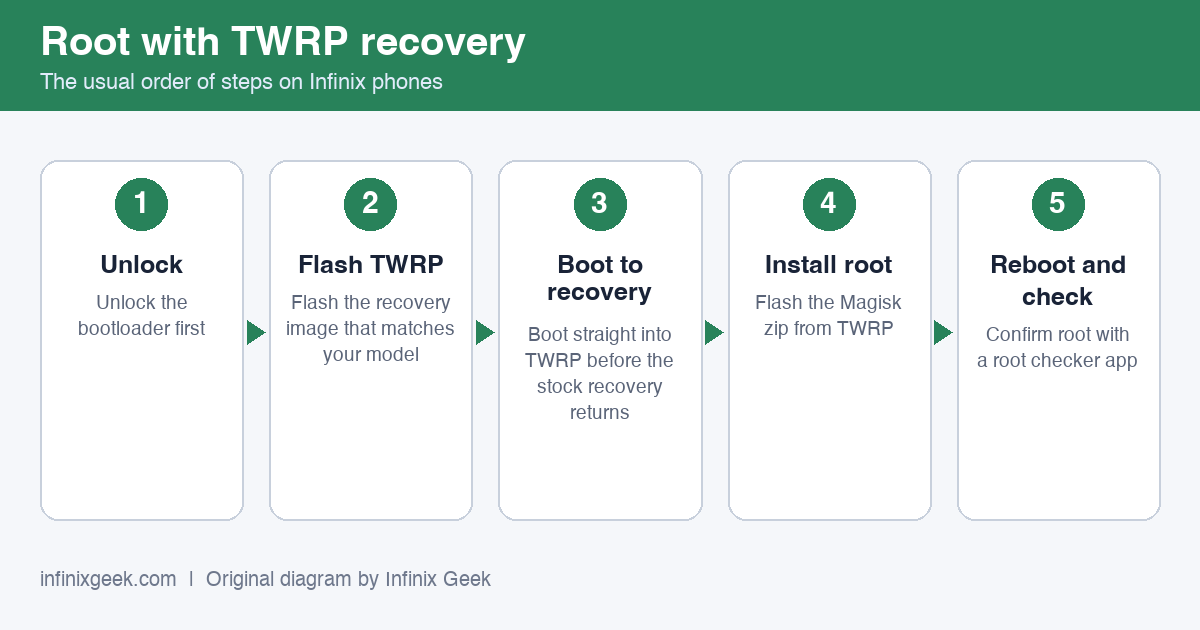
Rooting with TWRP: unlock, flash TWRP, boot to recovery, flash Magisk, reboot and check. Original diagram by Infinix Geek. -
Have you made a backup for your device before it is attempted to be rooted?
-
Have you understand this simple descriptive article on how to root your device?
If your answer to these three questions is a ‘yes’, then you should be ready to handle rooting your device and facing the benefits and consequences. But if your answer is ‘no’ to two or all three questions, then you should probably think a few more times before you take the leap.
More Infinix guides
- Before you start: install the Infinix USB drivers and keep the stock ROM handy as a backup plan.
- How to Root Infinix Note 4 Pro | Unlock Bootloader & Install TWRP Recovery
- How to Root Infinix Note 3 | Unlock Bootloader & Install TWRP Recovery
- How to Root Infinix Note 5 | Unlock Bootloader & Install TWRP Recovery
- How to Unlock Bootloader of Infinix Note 3
- Root & unlock guides for all Infinix phones