

In this post, I will guide through on how to root infinix note 5 and install TWRP Recovery on your device. The Infinix Note 5 has a 6.0inches size screen and an IPS LCD display phone. It also has a Octa-core 2.0GHz MediaTek Helio P23 MT6763T with 3GB RAM
Requirements:
ADB & Fastboot on your PC
MT6757_Android_scatter.txt
Magisk15.3.zip
Note 5 Twrp_recovery Indian.zip
PRE-REQUIREMENTS
Make sure battery percentage is more than 60%
Make sure you have installed USB Drives on your PC.
Install ADB & Fastboot drivers on your computer.
Now Enable Developer option.
Create an android backup on your device
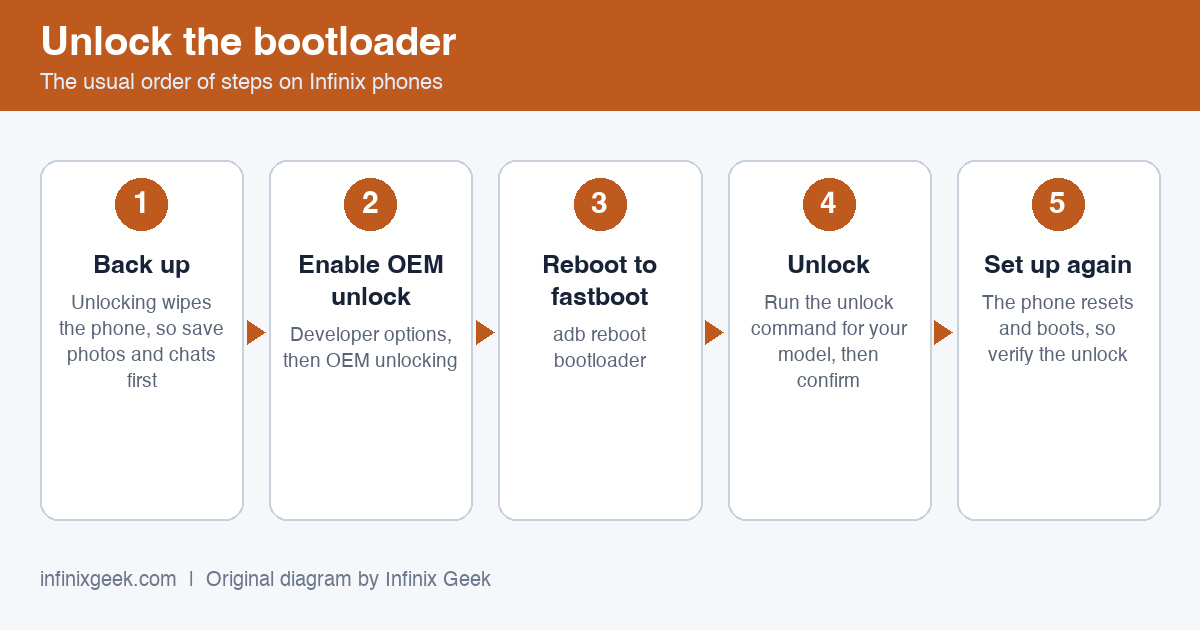
How to Unlock Infinix Note 5 Bootloader
Note: This is only required if your Infinix Note 5 came with a locked bootloader, such as from certain telecoms – if your Infinix Note 5 is already unlocked, you can go ahead and skip to the next part of this guide.
Warning: Unlocking your bootloader will perform a factory reset on your device, please backup all of your important data on your Note 5 device before proceeding.
- Go to Settings > About Phone > tap on Build Number 7 times, until Developer Mode is activated.
- Now go to Settings > Developer Options > Enable USB Debugging and OEM Unlocking.
- Connect your Infinix Note 5 to your PC via USB, and accept the ADB pairing dialogue on your phone’s screen.
- Go into the main folder of your ADB installation, hold Shift + right click, and select “ Open a Command Window Here”.
- In the ADB command window, type the following command: adb devices
- If the ADB connection is successfully recognized, the console will display your Infinix Note 5’s serial number. If not, you may need to troubleshoot your ADB installation or USB connection.
- If the connection was recognized, go ahead and type into the ADB window: adb reboot bootloader
- This will reboot your Infinix Note 5 to the bootloader menu – from here, type into the ADB console:
fastboot oem unlock
- Now just follow the on-screen instructions on your phone to unlock the bootloader. When its complete, you can hold the Power button for about 10 seconds to initiate a reboot to the Android system.
Here is my detailed guide to Unlock bootloader on the Note 5.
How to Install TWRP and Root Infinix Note 5

What Is TWRP Recovery and Some of its benefits?
Team Win Recovery Project ( TWRP ) is an open-source software custom recovery image for Android-based devices. It provides a touchscreen-enabled interface that allows users to install third-party firmware and back up the current system, functions often unsupported by Stock recovery images.
It is the most popular Android custom recovery. It replaces the stock recovery On Android devices. It comes with many extra features compared to the stock recovery. It needs the bootloader to be unlocked.
- Download the TWRP and Magisk files.
- Place the TWRP .img file inside the main directory of your ADB installation, and copy the Magisk .zip file to your phone’s external SD card.
- While your Infinix Note 5 is connected to your PC via USB, launch a new ADB command window.
- Now type into the ADB command window: fastboot flash recovery TWRP_recovery.img
- After it successfully flashes TWRP, type into the ADB window:
fastboot reboot recovery
- Your Infinix Note 5 should now reboot into TWRP recovery. It will most likely ask for a password due to phone encryption – just cancel it and swipe to allow /system modifications.
- Important: Before proceeding, you should go to Backup > Boot.Img, so you will always have a copy of your un-rooted boot.img and you can flash OTA .zip files at a later date, without needing to hunt for a compatible stock boot .img for your Infinix Note 5 through the internet.
- From the TWRP main menu, go to Flash > SD Card > choose the Magisk .zip you transferred earlier. Swipe right to flash it.
- After Magisk has been flashed (it will root your phone and also disable DM-verity and forced encryption), go to TWRP main menu > Wipe > Advanced Wipe > Format Data in F2FS FORMAT!! If you format your data as Ext4, you will experience bootloops to recovery.
- Once your data has been formatted, you can now Reboot to Recovery, and your storage will be mounted. You can now reboot to Android system, and enjoy your newly rooted Infinix Note 5!
How to Flash OTA Updates on Rooted Infinix Note 5
After rooting your device, you will not be able to download and install OTA updates via the Update manager in the Android Settings menu. You will need to manually flash OTA .zip files through TWRP, then go through the process of rooting your phone again.
When OTA updates are released through the Update manager, you have the choice of downloading them as a .zip file, rather than automatically upgrading your phone.
- Download the OTA .zip, and it will be found in Root/cache/update.zip and also Root/data/data/com.google.android.gms/app_download/update.zip
- Copy the update.zip file to your SD card, then reboot to TWRP Recovery.
- Now you need to flash a stock boot.img as I told you in the rooting section of this guide – if you did not create a backup of yours, you will need to download the official Infinix Note 5 stock ROM and extract the boot.img from the .zip file, copy it to your SD card, and flash it through TWRP.
- Once you have flashed the stock boot.img, you may now proceed to flash the OTA update.zip. Do not reboot your phone after this – you will corrupt your /system.
- At this point you should create another backup of the stock boot.img, and then flash the Magisk.zip to root your Infinix Note 5 (if you wish to be rooted again).
- You can now reboot to the Android system and enjoy your latest Android version on your Infinix Note 5!
Conclusion
Rooting your device turns you into its owner in the truest sense of the word, as it puts you in charge of every aspect of your phone. It also takes you out of a normal handset’s lifespan, allowing you to extend the longetivity of a device via custom ROMs, tweaks, and up to date patches thus losing your phone’s warranty.
That is, in fact, the greatest benefit and downside of Android itself. It gives you immense power, but you also have to be careful with that power. Your decision should be based on your answers to these questions:
- Are you willing to risk facing and trying to fix the disadvantages of rooting your device?
- Have you made a backup for your device before it is attempted to be rooted?
- Have you understand this simple descriptive article on how to root your device?
If your answer to these three questions is a ‘yes’, then you should be ready to handle rooting your device and facing the benefits and consequences. But if your answer is ‘no’ to two or all three questions, then you should probably think a few more times before you take the leap.
More Infinix guides
- Before you start: install the Infinix USB drivers and keep the stock ROM handy as a backup plan.
- How to Unlock Bootloader on Infinix Note 5
- How to Root Infinix Note 4 Pro | Unlock Bootloader & Install TWRP Recovery
- How to Root Infinix Note 4 | Unlock Bootloader & Install TWRP Recovery
- How to Root Infinix Note 3 | Unlock Bootloader & Install TWRP Recovery
- Root & unlock guides for all Infinix phones
i need the scatter file plz