
How to Root Infinix Hot 5 | Unlock Bootloader & Install TWRP Recovery
Its yet another step by step guide to Root Infinix Hot 5. Infinix is Hot 5 a nice smartphone in the market and specs are very decent. It comes with android Nougat 7.0 out of the box and we will see if it gets android Oreo in future or not.

Its yet another step by step guide to Root Infinix Hot 5. Infinix is Hot 5 a nice smartphone in the market and specs are very decent. It comes with android Nougat 7.0 out of the box and we will see if it gets android Oreo in future or not.
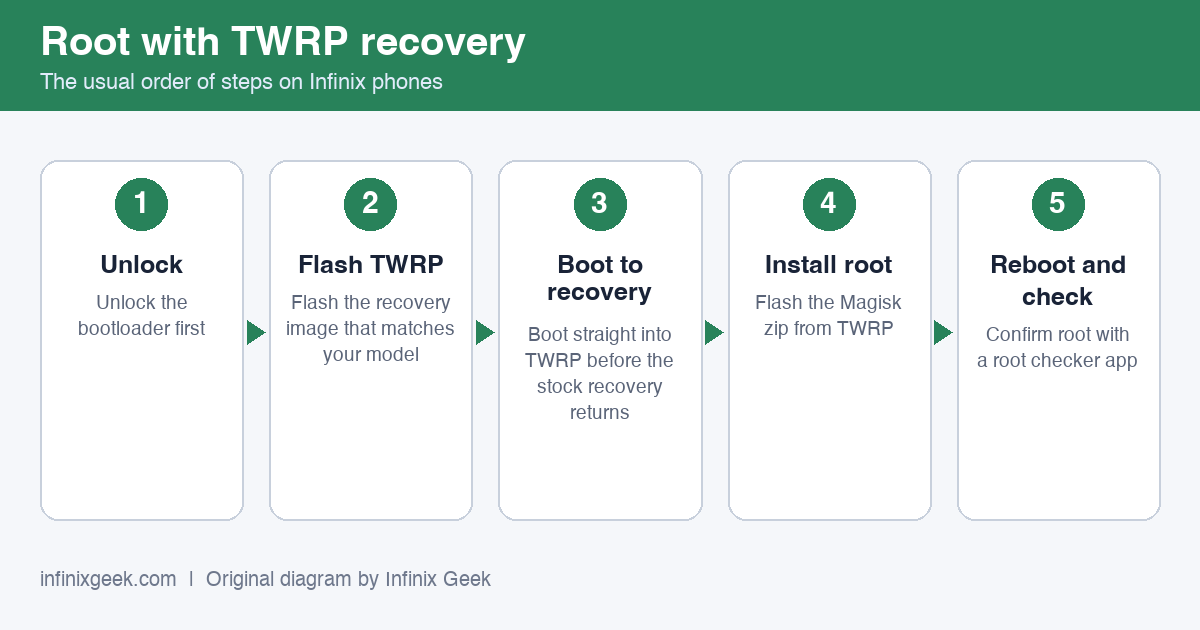
This is a legacy guide written in 2018 for the Infinix Hot 5 on its original Android version. We have not re-tested it on current firmware, and it is not meant for newer Infinix phones.
- It wipes your phone. Unlocking the bootloader erases all data. Back up anything you want to keep first.
- It can stop your phone booting and may affect your warranty. Have the stock firmware for your exact model ready before you start.
- Match your model exactly. Check the model code under Settings > About phone. Never flash a recovery, ROM or file made for a different model.
- If an unlock command fails (for example “unknown command” or “FAILED”), stop. Newer phones use
fastboot flashing unlock, older onesfastboot oem unlock, and some firmware does not allow unlocking at all. - Use maintained tools. TWRP builds for these phones are unofficial community ports, and SuperSU is no longer maintained. Magisk is the current root tool.
Size of the screen is 5.5 inch Touch Display, 720 x 1280 pixels (267ppi) and storage is 16GB Storage with support for memory card up to 32GB. The best thing in this phone is it has finger print scanner and 4000 Mah battery with fast charging.
But there is no 4G or LTE. If we talk about the processor it is ok 1.3GHz quad-core MediaTek MT6580 CPU with 2GB RAM. You will not be able to play heavy games with this handset.
If you are a owner of Infinix Hot 5 and you want to root and install TWRP. Then follow this guide. I have explained every thing very well. If the company doesn’t provide you android updates in future then you can install custom rom too with the help of TWRP.
Steps are really easy just read the whole article.
Infinix Hot 5 (X559) gives you additional benefits like you can install , flash custom ROMs , and many extra features. The real performance of an Android smartphone can only be unlocked once it is rooted.
Rooting your Infinix Hot 5 (X559), lets the user flash different Custom MODs, ROMs, and such stuff onto the device.
Install TWRP Recovery and Root Infinix Hot 5 (X559)
While rooting you have to be very careful and proceed with great caution, anything done wrong may get your device bricked.
If you are new to TWRP recovery and rooting then here we first share some facts about Android rooting.
What Is TWRP Recovery and Some of its benefits?
Team Win Recovery Project ( TWRP ) is an open-source software custom recovery image for Android-based devices.
It provides a touchscreen-enabled interface that allows users to install third-party firmware and back up the current system, functions often unsupported by Stock recovery images.
It is the most popular Android custom recovery.It replaces the stock recovery On Android devices.It comes with many extra features compared to the stock recovery. It needs the bootloader to be unlocked.
What does Rooting An Android Device Mean?
Rooting is the process of gaining full admin control of the Android device. You can use the device to its full potential,‘Rooting’ means giving yourself special privilege or “root permissions” on your phone. It’s similar to running plus grams as administrators in Windows.
Requirements.
- Download Infinix Hot 5 TWRP Recovery Image (check the official TWRP device list for your exact model; if it is not listed, there is no official image).
- Get Latest SP Flash Tool (spflashtool.com).
- Download and Install MTK Vcom Drivers (see our Infinix USB drivers guide).
- Fully Charged Windows Computer and USB Cable.
- The Magisk app (.apk), from its official GitHub releases page only.
- The stock firmware for your exact Hot 5 model and build number (you need its
boot.img). - Charge Infinix your Hot 5 to at least 60%.
How to Install TWRP Recovery on Infinix Hot 5.
First of all you need to unlock the bootloader. The process goes thus.
Warning: Unlocking your bootloader will perform a factory reset on your device, please backup all of your important data before proceeding.
- Go to Settings > About Phone > tap on Build Number 7 times, until Developer Mode is activated.
- Now go to Settings > Developer Options > Enable USB Debugging
and OEM Unlocking.
- Connect your Infinix Hot 5 to your PC via USB, and accept the ADB pairing dialogue on your phone’s screen.
- Go into the main folder of your ADB installation, hold Shift + right click, and select “ Open a Command Window Here”.
- In the ADB command window, type the following command: adb devices
- If the ADB connection is successfully recognized, the console will display your Infinix Hot 5’s serial number. If not, you may need to troubleshoot your ADB installation or USB connection.
- If the connection was recognized, go ahead and type into the ADB window: adb reboot bootloader
- This will reboot your Infinix Hot 5 to the bootloader menu – from here, type into the ADB console:
fastboot oem unlock
- Now just follow the on-screen instructions on your phone to unlock the bootloader. When its complete, you can hold the Power button for about 10 seconds to initiate a reboot to the Android system.
How to root the Infinix Hot 5 with Magisk
Magisk is the maintained way to root Android today. It changes only the boot image, leaves the system partition untouched and can be removed again by flashing the original boot image. The current Magisk app supports Android 6.0 and later, so it covers the Hot 5, which shipped with Android 7.0 Nougat. Your bootloader must already be unlocked (see the steps above).
There are two ways to install it. Method 1 is the one the Magisk developers recommend. Use Method 2 only if you have already installed TWRP.
Method 1 (recommended): patch the boot image
- On your phone, go to Settings > About phone and note the exact model code and build number.
- Get the stock firmware for that exact model and build, and extract it on your PC. Inside the firmware folder you will find a file called
boot.img, next to the scatter file. If the build number does not match your phone, stop: a boot image from another build can stop the phone booting. - Copy
boot.imgto your phone’s internal storage. - Download the Magisk app (.apk) from its official GitHub releases page and install it on the phone. Only download Magisk from there; copies on other sites can contain malware.
- Open Magisk, tap Install next to Magisk, choose Select and Patch a File and pick the
boot.imgyou copied. Magisk saves a new file namedmagisk_patched-….imgin your Download folder. - Copy that patched file to the ADB folder on your PC and rename it
magisk_patched.img. Keep the originalboot.imgsafe as well; you need it to undo root. - Reboot the phone to the bootloader with
adb reboot bootloader, then flash the patched image:
fastboot flash boot magisk_patched.img
fastboot reboot
- If fastboot refuses to flash the boot partition on your phone, use SP Flash Tool instead: load the scatter file from the same firmware, choose Download Only, untick everything except boot, set the boot file to your
magisk_patched.img, click Download and connect the switched-off phone. Never use Format All + Download, because it can erase your IMEI. - When the phone starts, open the Magisk app. If it asks to complete additional setup, accept and let the phone reboot. Magisk then shows an installed version, which means the phone is rooted.
Method 2: install Magisk from TWRP
If you have already installed TWRP using the steps above, you can flash Magisk from recovery. The Magisk developers describe this method as deprecated and maintained with minimum effort, so prefer Method 1 when you can.
- Download the Magisk .apk from its official GitHub releases page, make a copy and rename the copy’s extension from
.apkto.zip. - Copy the .zip to your phone’s storage or SD card.
- Boot into TWRP by holding Volume Up and Power together for about 5 seconds.
- If TWRP asks to allow modifications of the system partition, tap Keep Read Only. If it offers to install its own root, choose Do not install.
- Tap Install, select the Magisk .zip and swipe to flash it.
- Reboot to the system and install the Magisk .apk as a normal app. It should show Magisk as installed.
How to undo root
Open the Magisk app and choose Uninstall Magisk > Complete Uninstall. If the phone no longer starts, flash your original boot.img with fastboot flash boot boot.img or with SP Flash Tool in Download Only mode, or reflash the full stock firmware.
That’s how to root the Infinix Hot 5 with Magisk.
Conclusion
Rooting your device turns you into its owner in the truest sense of the word, as it puts you in charge of every aspect of your phone.
It also takes you out of a normal handset’s lifespan, allowing you to extend the longetivity of a device via custom ROMs, tweaks, and up to date patches thus losing your phone’s warranty.
That is, in fact, the greatest benefit and downside of Android itself. It gives you immense power, but you also have to be careful with that power. Your decision should be based on your answers to these questions:
- Are you willing to risk facing and trying to fix the disadvantages of rooting your device?
-
Have you made a backup for your device before it is attempted to be rooted?
-
Have you understand this simple descriptive article on how to root your device?
If your answer to these three questions is a ‘yes’, then you should be ready to handle rooting your device and facing the benefits and consequences.
But if your answer is ‘no’ to two or all three questions, then you should probably think a few more times before you take the leap.
More Infinix guides
- Before you start: install the Infinix USB drivers and keep the stock ROM handy as a backup plan.
- How to Root Infinix Hot 4 | Unlock Bootloader & Install TWRP Recovery
- How to Root Infinix Hot 6 and Hot 6 pro | Unlock Bootloader & Install TWRP Recovery
- How to Unlock Bootloader on Infinix Hot 6 and Hot 6 Pro
- How to Unlock Bootloader on Infinix Hot 6X & Install TWRP Recovery
- Root & unlock guides for all Infinix phones