
Infinix Tools & Downloads: USB Drivers, Flash Tool, Stock ROM & XOS
The right tool for every Infinix task, with its official source and how to download safely.
Everything you need to connect, update, root, flash or repair an Infinix phone, in one place. For each task we name the right tool, link to its official source and tell you when a tool only exists as an unofficial download, so you know which files need extra care.
Rebuilt as a tool finder: every tool now has its official source, a clear official or unofficial label, a safe-download checklist and links to our step-by-step guides. Infinix Geek does not host any tool or firmware files.
Find the right tool for your task
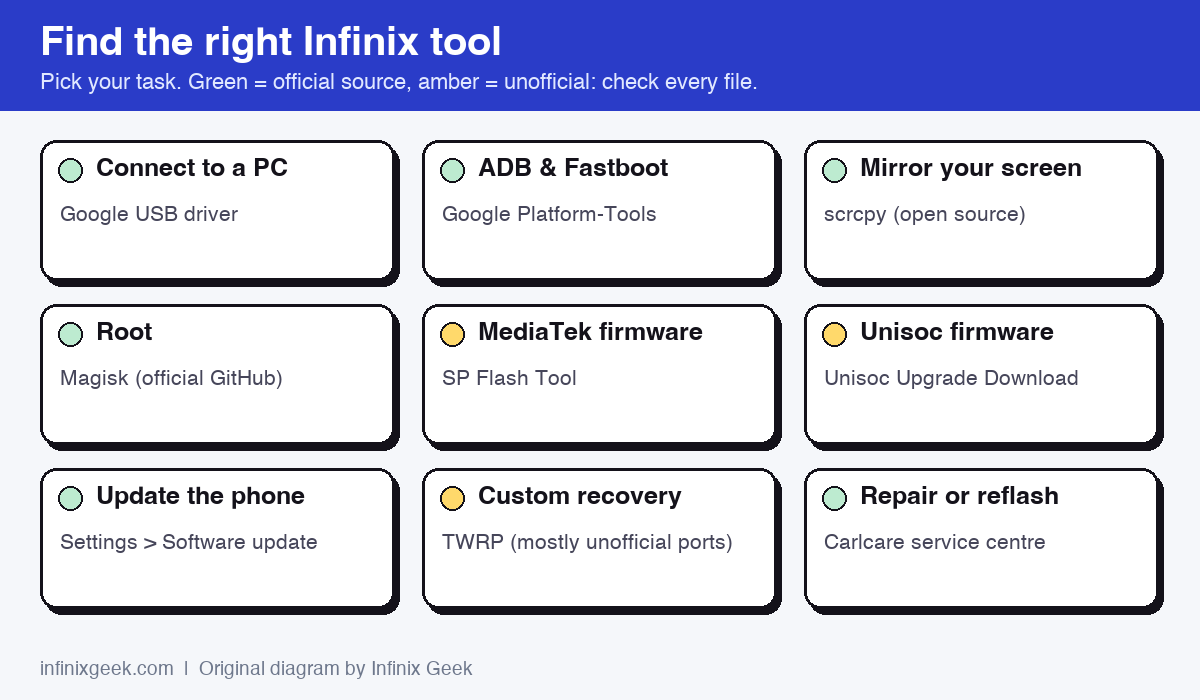
| What you want to do | Tool | Where to get it | Source |
|---|---|---|---|
| Connect your phone to a Windows PC for ADB and Fastboot | Google USB driver (ADB Interface) | Google USB driver page | Official (Google) |
| Run ADB and Fastboot commands | Android SDK Platform-Tools | Google Platform-Tools page | Official (Google) |
| See and control your phone screen from your PC | scrcpy | scrcpy on GitHub | Official (open-source project) |
| Root your phone | Magisk | Magisk releases on GitHub | Official (developer) |
| Install a custom recovery | TWRP | TWRP device list | Official site, but most Infinix builds are unofficial community ports |
| Flash firmware on a MediaTek phone | SP Flash Tool + MediaTek VCOM driver | No public download from MediaTek; widely mirrored, for example on spflashtool.com | Unofficial distribution |
| Flash firmware on a Unisoc phone | Unisoc Upgrade Download or Research Download + Unisoc (SPRD) driver | No public download from Unisoc; shared on community forums such as Hovatek | Unofficial distribution |
| Update the phone’s software | Built-in software update | On the phone: Settings > System > Software update | Official (Infinix) |
| Repair, warranty service or an official reflash | Carlcare service centres (the Carlcare app is preinstalled on many Infinix phones) | carlcare.com | Official (Infinix’s designated after-sales service) |
Not sure whether your phone has a MediaTek or Unisoc chip? Check the current models table in our USB drivers guide.
Our step-by-step guides for each tool
- Infinix USB drivers: which driver your phone needs, Windows setup, what Device Manager should show and how to fix a phone that isn’t detected.
- Infinix stock ROM (firmware): what to try before flashing, a firmware safety checklist, MediaTek and Unisoc flashing, and current models.
- Infinix Flash Tool: how SP Flash Tool works on MediaTek Infinix phones, with fixes for common errors.
- Root and unlock guides: model-by-model walkthroughs, each with a safety check. The Hot 4 and Hot 5 guides show the Magisk boot-image method step by step.
How to download tools safely
Phone tools are a favourite hiding place for malware, because people expect to run them as administrator. Follow these rules for every download:
- Use the official source first. Every tool in the table that has an official page should only be downloaded from that page.
- Check the file. If the source publishes a checksum, compare it. On Windows, open Command Prompt in the download folder and run
certutil -hashfile filename.zip SHA256, then compare the result with the published value. - Scan unofficial files. Upload anything from an unofficial source to VirusTotal before you open it.
- Never run installers hidden in firmware. A firmware package contains image files. An .exe inside it is a red flag.
- Avoid “unlocker” and “FRP bypass” tools. They are a common source of malware, and removing a Google account lock from a phone that isn’t yours is illegal in many countries. If you are locked out of your own phone, take it and your proof of purchase to Carlcare.
XOS and Infinix software
XOS is Infinix’s version of Android. Updates arrive over the air under Settings > System > Software update, and installing them is the safest way to fix bugs and get security patches. Our older XOS reviews cover earlier versions of the software:
- Review: Infinix 3.0 User Interface (Hummingbird)
- Review: Infinix XOS Chameleon features and specs
- Review: Infinix XOS Hummingbird
- Review: XOS Family Apps
Frequently asked questions
Is SP Flash Tool an official Infinix tool?
No. It is MediaTek’s flashing tool, and neither MediaTek nor Infinix offers it as a public download. Copies circulate on third-party sites, so check every file, and note that recent MediaTek Infinix phones usually refuse flashing without an authorised tool.
Do I need root to use these tools?
No. ADB, Fastboot and scrcpy all work on an unrooted phone once USB debugging is on. Root is only needed for tools that change the system itself.
What is Carlcare?
Carlcare is the official after-sales service for Infinix phones. Its service centres handle warranty repairs and can reinstall firmware on models that can’t be flashed at home. Find your nearest centre on carlcare.com or in the Carlcare app.
Can I download tools or firmware from Infinix Geek?
No. We do not host any files. We link to official sources and explain how to check anything that only exists as an unofficial download.
Next steps
Ready to customise your phone? See the root and bootloader unlock guides, or browse our Infinix reviews and comparisons.