
Infinix Stuck on Logo or Boot Loop? 7 Fixes That Work
Seven fixes for an Infinix phone stuck on the logo, safest first.
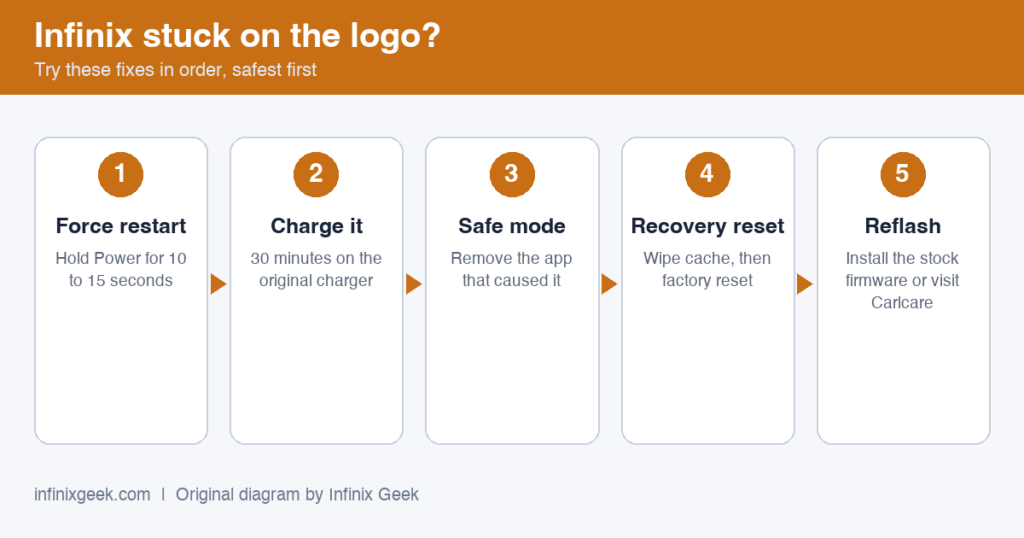
An Infinix phone that’s stuck on the logo, or keeps restarting before it reaches the home screen, is in a boot loop. It looks serious, but most boot loops are caused by something you can fix at home: a failed update, a bad app, a full storage, a faulty SD card or a weak battery. This guide goes from the quickest, safest fixes to the ones that erase data, so try them in order and stop as soon as one works.
These fixes follow the standard Android recovery methods and the button combinations Infinix phones use. Combinations differ between some models; where they do, we say what to try instead. Sources are listed at the end.
The short answer
- Force restart: hold Power for 10 to 15 seconds.
- Charge it for 30 minutes with the original charger, then try again.
- Take out the SD card and SIM, then restart.
- Start in Safe mode and remove any app you installed just before the problem began.
- Wipe the cache from recovery mode, if your model has that option.
- Factory reset from recovery mode (this erases your data).
- Reinstall the stock firmware, or take the phone to Carlcare.
First, what kind of boot loop is it?
| What you see | Most likely cause | Start with |
|---|---|---|
| Restarts after a few seconds on the logo | Low or worn battery, or a crashing app | Fixes 2 and 4 |
| Stuck on the logo for more than 15 minutes | Failed update or corrupted system files | Fixes 5 to 7 |
| Started right after an update | Interrupted or failed update | Fixes 1, 5 and 7 |
| Started after you installed an app | That app | Fix 4 |
| Started after rooting or flashing | Modified system | Fix 7 |
| Started after a drop or water damage | Hardware fault | Carlcare |
One note on timing: the first start after an update or reset can take 10 to 15 minutes while the phone optimises its apps. That’s normal, so give it time before deciding it’s stuck.
Fix 1: Force restart
Hold the Power button for 10 to 15 seconds, until the screen goes black and the phone starts again. If that doesn’t work, hold Power and Volume Down together for the same time. A force restart clears a one-off freeze and deletes nothing.
Fix 2: Charge it properly
A nearly empty or ageing battery can’t supply enough power to finish starting, so the phone gives up and tries again. Plug it into the original charger and a wall socket, not a laptop, and leave it for at least 30 minutes without trying to start it. Then hold Power to switch it on while it’s still plugged in.
If the phone only starts while it’s plugged in, or the battery icon jumps around, the battery is probably worn out. A battery replacement at Carlcare is the fix.
Fix 3: Remove the SD card and SIM
A damaged microSD card can make Android hang while it reads the card during start-up. Turn the phone off, take out the SD card and the SIM tray, and start it again. If it starts, copy what you can from the card on a computer and replace it.
Fix 4: Start in Safe mode
Safe mode starts Android without any of the apps you’ve installed. If the phone starts in Safe mode, an app is the cause.
- Turn the phone off.
- Hold Power to start it. When the Infinix logo appears, let go of Power and immediately hold Volume Down.
- Keep holding until the home screen appears with “Safe mode” in the corner.
If the phone is restarting but you can briefly reach the home screen, you can also press and hold Power off in the power menu, then tap OK to restart in Safe mode.
In Safe mode, go to Settings > Apps and uninstall whatever you installed or updated just before the problem started. Cleaners, “battery boosters”, launchers and apps from outside the Play Store are the usual suspects. Then restart normally.
Fix 5: Wipe the cache partition
Older Infinix phones have a Wipe cache partition option in recovery mode. It clears temporary system files that can get corrupted by an update, and it doesn’t delete your photos or apps.
- Turn the phone off.
- Hold Power and Volume Up until the recovery menu appears (some models use Power and Volume Down).
- Use the volume buttons to select Wipe cache partition, press Power, and confirm.
- Select Reboot system now.
Many newer Infinix phones don’t show this option, because recent Android versions handle updates differently. If it isn’t there, go to the next fix.
Fix 6: Factory reset from recovery
If nothing above worked, a factory reset fixes most software-caused boot loops. It erases everything stored on the phone, so only do it once you’ve accepted losing anything that isn’t backed up.
In the same recovery menu, choose Wipe data/factory reset and confirm. You’ll need the Google account that was on the phone to set it up again afterwards. Our Infinix hard reset guide covers every step and the Google verification screen.
Fix 7: Reinstall the stock firmware
If the phone still won’t start after a reset, or you can’t reach recovery mode, the system software itself is damaged. Reinstalling the official firmware replaces it completely. You’ll need a Windows PC, the right drivers and the exact firmware for your model.
- Get the firmware and full instructions in our Infinix stock ROM guide.
- Most Infinix phones use MediaTek chips and SP Flash Tool; see our Infinix Flash Tool guide.
- Install the VCOM and USB drivers first.
Be careful: firmware for a different model or region can leave the phone completely dead. Match the model number exactly, usually an X-number printed on the box or the label under the battery or SIM tray. If you’re not comfortable with this, Carlcare can reinstall the software for you.
When to go to Carlcare
Take the phone to a Carlcare service centre if it got wet or was dropped, if it gets hot while looping, if it won’t reach recovery mode at all, or if it’s still under warranty. Carlcare is Infinix’s official service and can test the battery and board, which you can’t do at home. Bring your receipt or box.
Frequently asked questions
Can I save my photos from a phone in a boot loop?
Only before a reset. If Google Photos backup was on, your photos are already safe in your Google account. Otherwise, try fixes 1 to 5 first, because they don’t erase anything. If the phone reaches Safe mode, back up everything straight away.
Why did my Infinix get stuck on the logo after an update?
Usually because the update was interrupted, by a dead battery or a full storage. Fix 5 or Fix 7 normally solves it. Always charge above 50% and keep a few gigabytes free before updating.
Will a boot loop fix itself?
Rarely. If the phone has been looping for more than 20 minutes, it needs one of the fixes above.
Sources
- Safe mode and fixing a phone that keeps restarting: Google Android Help (safe mode), Google Android Help (restarting)
- Infinix recovery button combinations: DevicesFAQ
- Carlcare as Infinix’s official service: Infinix India
More help: our Infinix tools and downloads hub.