
How to Hard Reset or Factory Reset an Infinix Phone
Two ways to wipe an Infinix phone, and how to avoid getting locked out by Google verification afterwards.
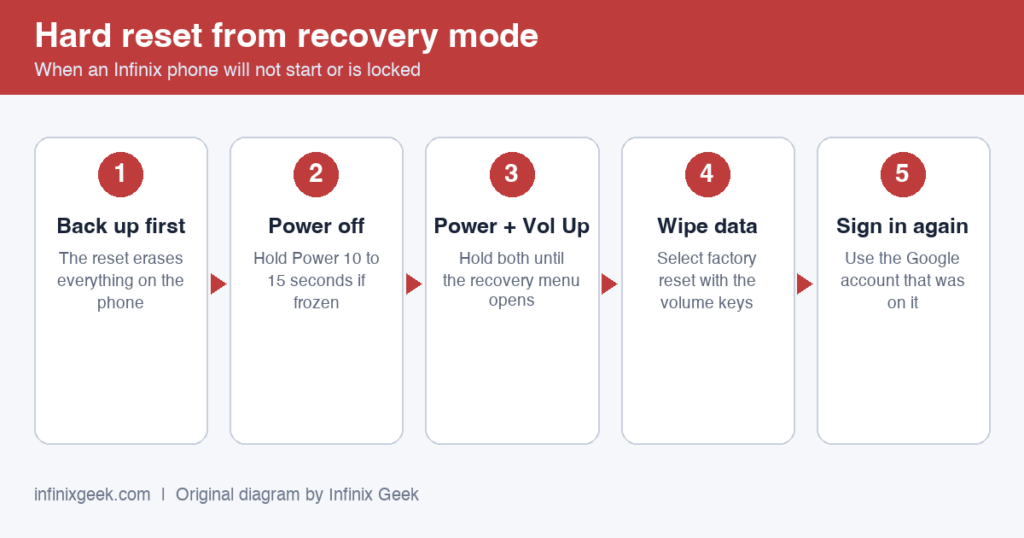
A factory reset erases everything on your Infinix phone and returns it to how it left the factory. It’s the fix of last resort for a phone that’s slow, buggy or infected with adware, and it’s the essential last step before you sell or give a phone away. There are two ways to do it: from Settings, if the phone still works, or from recovery mode, if it doesn’t start properly or you’ve forgotten the lock-screen code. This guide covers both, and the Google account step that trips up many people afterwards.
These steps follow the standard Android reset method and the menu names XOS uses. Infinix moves menus and changes button combinations between models, so your phone may differ slightly. Where it does, we tell you what to try instead. Sources are listed at the end.
Before you reset: three things to do first
- Back up what you want to keep. A reset deletes photos, messages, apps and settings stored on the phone. Turn on Google Photos backup and back up WhatsApp chats from inside WhatsApp (Settings > Chats > Chat backup). Files on a microSD card normally survive, but remove the card to be safe.
- Know your Google account password. After a reset, Android’s Factory Reset Protection (FRP) asks for the Google account that was on the phone. Without it you can’t finish setting the phone up. If you’re selling the phone, remove your Google account first in Settings > Accounts.
- Charge the phone to at least 50%. A reset that stops halfway because the battery dies can leave the phone unable to start.
Method 1: Reset from Settings (recommended)
Use this if your phone starts and you can unlock it.
- Open Settings and tap System.
- Tap Reset options (on some versions it’s called Backup and reset).
- Tap Erase all data (factory reset).
- Read the list of what will be deleted, then tap Reset phone or Erase all data.
- Enter your PIN, pattern or password, and confirm.
The phone restarts and the reset takes a few minutes. When the welcome screen appears, the reset is done. If you can’t find the menu, search Settings for “reset”.
The same Reset options page has two smaller resets that are worth trying first if you only have a specific problem: Reset Wi-Fi, mobile and Bluetooth clears network settings only, and Reset app preferences undoes changes to default apps and permissions. Neither deletes your files.
Method 2: Hard reset from recovery mode
Use this if the phone won’t start, is stuck on the logo, or you’ve forgotten your lock-screen code.
- Turn the phone off completely. If it’s frozen, hold the Power button for 10 to 15 seconds until the screen goes black.
- Press and hold Power and Volume Up together.
- When the Infinix logo appears, let go of Power but keep holding Volume Up until the recovery menu opens. If you see a robot with “No command”, hold Power and tap Volume Up once.
- Use the volume buttons to move to Wipe data/factory reset and press Power to select it. The touchscreen usually doesn’t work in this menu.
- Choose Yes or Factory data reset to confirm.
- When it’s finished, select Reboot system now.
If Power and Volume Up doesn’t work: some Infinix models use Power and Volume Down instead. If you land on a screen with “Fastboot” or several boot options, you’ve reached a different mode: hold Power to restart and try the other combination. Don’t select anything you don’t recognise.
After the reset: Google account verification
When the phone starts again, you’ll go through setup. If a Google account was on the phone before the reset, Android asks you to sign in with that same account. This is Factory Reset Protection, and it’s there to make stolen phones useless.
- It’s your phone and you know the password: sign in, and setup continues normally.
- You’ve forgotten the password: recover it on another device at Google’s account recovery page, then wait about 24 hours if you’ve just changed it, because Android may refuse a password changed very recently.
- You bought the phone second-hand and it’s locked: ask the seller to remove the phone from their Google account, or take it with your proof of purchase to a Carlcare service centre.
We don’t publish FRP bypass methods. They’re used to unlock stolen phones, and on a phone you own, recovering the account is quicker and safer.
Which reset should you use?
| Situation | Best option |
|---|---|
| Phone is slow or buggy, but works | Method 1, after a backup |
| Selling or giving away the phone | Remove your Google account, then Method 1 |
| Forgot PIN or pattern | Method 2 (your files will be lost) |
| Stuck on the logo or restarting | Try our boot loop fixes first, then Method 2 |
| Reset doesn’t fix the problem | Reinstall the stock firmware or visit Carlcare |
Frequently asked questions
Does a factory reset remove viruses and adware?
It removes any app you installed, which is where almost all adware lives. If the ads come back right after a reset, the problem is an app you reinstalled, or more rarely the phone’s firmware. In that case reinstalling the official firmware is the fix.
Will a reset remove the latest XOS update?
No. A reset deletes your data, not the system software. You keep the XOS and Android version you had.
Does it delete files on my SD card?
Usually not, unless you tick an option to erase the SD card too. Take the card out first to be certain.
How long does a hard reset take?
Usually 2 to 10 minutes. The first start afterwards is slower than normal. If the logo shows for more than 20 minutes, see our boot loop guide.
Sources
- Factory reset and Factory Reset Protection: Google Android Help
- Infinix recovery button combinations by model: DevicesFAQ, iMobie
- Carlcare as Infinix’s official service: Infinix India
More help: our Infinix tools and downloads hub.