

Infinix Hot S3 is a fairly new device which was recently launched but the device has already got a working TWRP recovery.
It is not an official release from Team Win. The TWRP Recovery Version for Infinix Hot S3 is 3.1.1 which has a clean material Design, Touch Screen Support, and Encryption mode. Now follow the simple step by step guide to get your Infinix device rooted.
If you are an Infinix Hot S3 user, then this is a great news for you. Rooting your Infinix Hot S3 will allow you to flash different Custom MODs, ROMs, and such stuff onto the device.
If you are an Infinix Hot S3 user and want to gain root access then don’t worry, we have got you covered here.
Android is the most advanced mobile operating system ever made and it’s getting better and better with time. Android users can root their device to get the most of it.
Rooting an android is not that difficult as it seems. Infinix Hot S3 gives you additional benefits like you can install special apps, flash custom ROMs, you can streamline your phone performance and many extra features.
The real performance of an Android smartphone can only be unlocked once it is rooted.
As it is an Android smartphone and comes with an unlockable bootloader, it can be rooted easily and now there is a working TWRP recovery made available for the device.
Follow the steps given below to Root Infinix Hot s3 and Install Recovery.
Root Infinix Hot s3 Step by Step
Infinix Hot S3 comes equipped with a large 5.65 inches HD+ IPS display with 720P screen resolution. The device runs Android 8.0 Oreo Out of the box.
It is powered by a 1.4 GHz Octa-core Qualcomm Snapdragon 430 processor coupled with 3/4GB of RAM and 32/64GB of Internal Storage which can be expanded up to 128GB.
The Infinix Hot S3 sports a 13MP camera on the rear and 20MP front-facing camera. The device houses a non-removable Li-Ion 4000 mAh battery
Rooting may seem very difficult but it is not. In the earlier days, users were afraid to root their device as there were not many guides available and the process was very hard, but now things have changed.
Nowadays, rooting is very simple and can be achieved in few minutes. First, you have to unlock the bootloader, after which you can install TWRP recovery. Once TWRP is installed, you can root the device.
Now here we come with a full working guide on how to install TWRP Recovery and Root Infinix Hot s3. While rooting you have to be very careful and process with great caution, anything wrongs you may get your device bricked.
If you are new to TWRP recovery and rooting then here we first share some facts about Android rooting.
What is Rooting An Android Device Mean?
Rooting is the process of gaining full admin control of the Android device. You can use the device to its full potential,‘Rooting’ means giving yourself special privilege or “root permissions” on your phone. It’s similar to running plus grams as administrators in Windows.
After rooting your device you can install different MODs, kernel, ROMs on your device. You can install latest (like the Android 6.0.1 Marshmallow) On old device by installing third party ROMs like .
You can overclock the CPU and GPU of your device to get the best performance. You can hibernate any app you want. You can underclock the CPU to get better battery life.
What Is TWRP Recovery and Some of its benefits?
Team Win Recovery Project ( TWRP ) is an open-source software custom recovery image for Android-based devices.
It provides a touchscreen-enabled interface that allows users to install third-party firmware and back up the current system, functions often unsupported by Stock recovery images. It is the most popular Android custom recovery.
It replaces the stock recovery On Android devices.It comes with many extra features compared to the stock recovery.It needs the bootloader to be unlocked.
Pre-Requirements
Download Infinix Hot 4 TWRP Recovery Image (goo.gl/hHcl75).
Get Latest SP Flash Tool (http://spflashtool.com/).
Download and Install MTK Vcom Drivers ((goo.gl/AnOl3J).
Fully Charged Windows Computer and USB Cable.
SuperSU.Zip (goo.gl/AMNWye).
Make sure battery percentage is more than 60%
Make sure you have installed USB Drives on your PC.
Install ADB & Fastboot drivers on your computer.
First of all you need to unlock the bootloader. The process goes thus.
Warning: Unlocking your bootloader will perform a factory reset on your device, please backup all of your important data before proceeding.
- Go to Settings > About Phone > tap on Build Number 7 times, until Developer Mode is activated.
- Now go to Settings > Developer Options > Enable USB Debugging
and OEM Unlocking.
- Connect your Infinix S3 to your PC via USB, and accept the ADB pairing dialogue on your phone’s screen.
- Go into the main folder of your ADB installation, hold Shift + right click, and select “ Open a Command Window Here”.
- In the ADB command window, type the following command: adb devices
- If the ADB connection is successfully recognized, the console will display your Infinix S3’s serial number. If not, you may need to troubleshoot your ADB installation or USB connection.
- If the connection was recognized, go ahead and type into the ADB window: adb reboot bootloader
- This will reboot your Infinix S3 to the bootloader menu – from here, type into the ADB console:
fastboot oem unlock
- Now just follow the on-screen instructions on your phone to unlock the bootloader. When its complete, you can hold the Power button for about 10 seconds to initiate a reboot to the Android system.
Install TWRP Recovery
- Download the TWRP and Magisk files.
- Place the TWRP .img file inside the main directory of your ADB installation, and copy the Magisk .zip file to your phone’s external SD card.
- While your Infinix S3 is connected to your PC via USB, launch a new ADB command window.
- Now type into the ADB command window: fastboot flash recovery TWRP_recovery.img
- After it successfully flashes TWRP, type into the ADB window:
fastboot reboot recovery
- Your Infinix S3 should now reboot into TWRP recovery. It will most likely ask for a password due to phone encryption – just cancel it and swipe to allow /system modifications.
- Important: Before proceeding, you should go to Backup > Boot.Img, so you will always have a copy of your un-rooted boot.img and you can flash OTA .zip files at a later date, without needing to hunt for a compatible stock boot .img for your Infinix S3 through the internet.
- From the TWRP main menu, go to Flash > SD Card > choose the Magisk .zip you transferred earlier. Swipe right to flash it.
- After Magisk has been flashed (it will root your phone and also disable DM-verity and forced encryption), go to TWRP main menu > Wipe > Advanced Wipe > Format Data in F2FS FORMAT!! If you format your data as Ext4, you will experience bootloops to recovery.
- Once your data has been formatted, you can now Reboot to Recovery, and your storage will be mounted. You can now reboot to Android system, and enjoy your newly rooted Infinix S3!
Conclusion
Rooting your device turns you into its owner in the truest sense of the word, as it puts you in charge of every aspect of your phone.
It also takes you out of a normal handset’s lifespan, allowing you to extend the longetivity of a device via custom ROMs, tweaks, and up to date patches thus losing your phone’s warranty.
That is, in fact, the greatest benefit and downside of Android itself. It gives you immense power, but you also have to be careful with that power. Your decision should be based on your answers to these questions:
- Are you willing to risk facing and trying to fix the disadvantages of rooting your device?
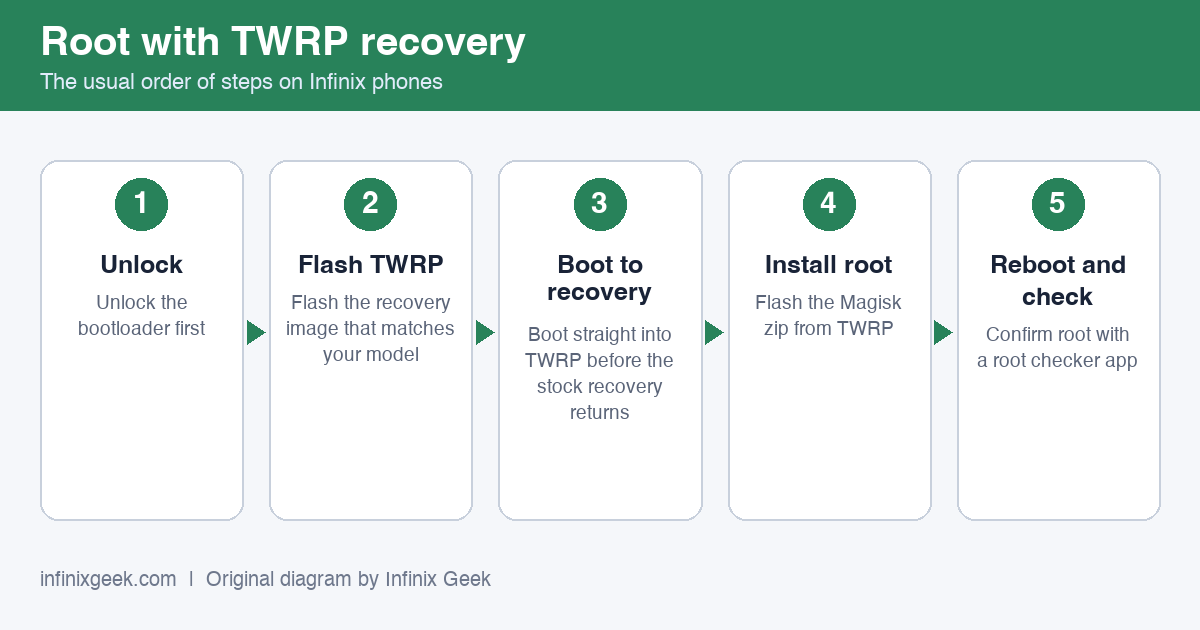
Rooting with TWRP: unlock, flash TWRP, boot to recovery, flash Magisk, reboot and check. Original diagram by Infinix Geek. -
Have you made a backup for your device before it is attempted to be rooted?
-
Have you understand this simple descriptive article on how to root your device?
If your answer to these three questions is a ‘yes’, then you should be ready to handle rooting your device and facing the benefits and consequences.
But if your answer is ‘no’ to two or all three questions, then you should probably think a few more times before you take the leap.
More Infinix guides
- Before you start: install the Infinix USB drivers and keep the stock ROM handy as a backup plan.
- How To Root Infinix Hot s2 | Unlock Bootloader & Install TWRP Recovery
- How to Root Infinix Hot 4 | Unlock Bootloader & Install TWRP Recovery
- How to Root Infinix Hot 5 | Unlock Bootloader & Install TWRP Recovery
- How to Root Infinix Hot 6 and Hot 6 pro | Unlock Bootloader & Install TWRP Recovery
- Root & unlock guides for all Infinix phones