
How to Enable Developer Options and USB Debugging on Infinix
Unlock the hidden Developer Options menu on your Infinix and connect it to a PC in five steps.
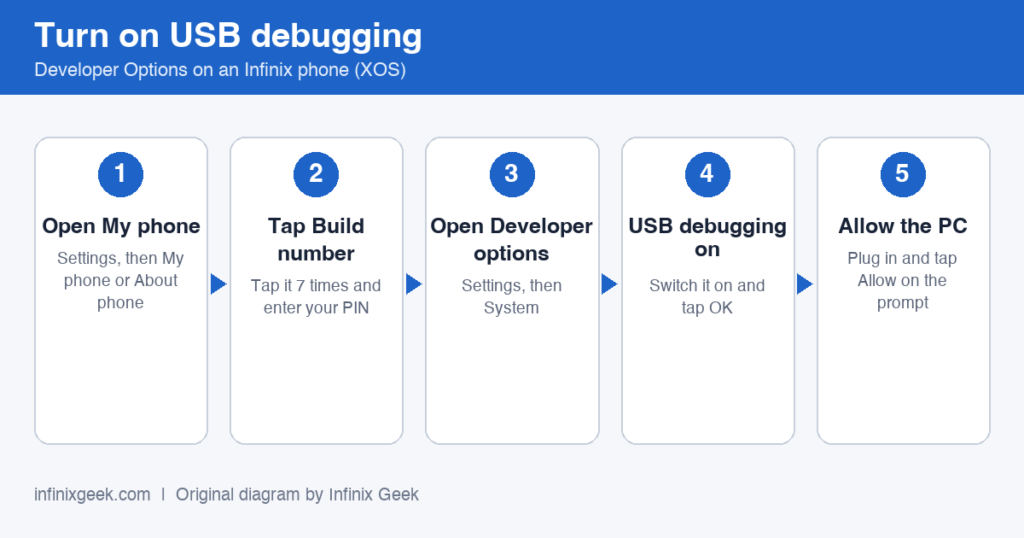
Developer Options is a hidden settings menu on every Infinix phone. You need it to turn on USB debugging, which lets a computer talk to your phone through ADB. You also need it before you can unlock the bootloader, flash firmware with some tools, or use apps that back up and transfer data over a cable. This guide shows how to turn it on in XOS, how to switch on USB debugging, and what to do when your PC still can’t see the phone.
These steps follow Android’s standard method and the menu names XOS uses. Infinix renames and moves menus between XOS versions, so your phone may show slightly different wording. If a menu isn’t where we say, type its name into the search bar at the top of Settings. Sources are listed at the end.
The short answer
- Open Settings and tap My phone (called About phone on some versions).
- Tap Build number seven times quickly, then enter your PIN or pattern if asked.
- Go back to Settings > System > Developer options.
- Switch on USB debugging and confirm.
- Plug the phone into your PC and tap Allow on the “Allow USB debugging?” prompt.
Step 1: Turn on Developer Options
Open the Settings app and scroll to the bottom. Tap My phone. On some XOS versions the entry is called About phone, and on a few the Build number is one level deeper, under a page such as “Software info”. If you can’t find it, type “Build number” into the Settings search bar.
Tap Build number seven times in a row. After a few taps a small message counts down how many taps are left. When it’s done, the phone asks for your lock-screen PIN, pattern or password, then shows a message such as “You are now a developer!” or “Developer mode activated”. The exact wording depends on your XOS version.
Turning on Developer Options doesn’t change anything by itself. It only makes the menu visible. It doesn’t void your warranty and doesn’t wipe the phone.
Go back to the main Settings screen and open System. Developer options is usually near the bottom of that page. On some versions it appears in the main Settings list instead. Again, searching Settings for “Developer” is the quickest way.
At the top of the menu there’s a main switch. Leave it on. If you turn it off, every developer setting goes back to normal, including USB debugging.
Step 3: Switch on USB debugging
Scroll down to the Debugging section and turn on USB debugging. The phone warns that this is meant for development. Tap OK.
You’ll also see these settings nearby. You don’t need to change them for normal use:
- OEM unlocking: only needed if you plan to unlock the bootloader. Leave it off otherwise. Our bootloader unlock guide explains when to turn it on and what it erases.
- Wireless debugging: ADB over Wi-Fi, on newer XOS versions. Useful, but harder to set up than a cable.
- Revoke USB debugging authorizations: forgets every computer you’ve allowed. Use it if you sold or lent out a PC, or if a connection gets stuck.
Step 4: Connect to your PC and allow it
Use a data cable, ideally the one that came with the phone. Many cheap cables only charge and carry no data, and that’s the most common reason a PC can’t see a phone. Plug in the phone and unlock its screen.
A prompt appears on the phone: “Allow USB debugging?”, with the computer’s RSA key fingerprint. Tick Always allow from this computer if it’s your own PC, then tap Allow. If you tap Cancel, or the prompt disappears, unplug the cable and plug it back in to see it again.
To check the connection, open a command window in your ADB folder on the PC and run adb devices. Your phone’s serial number should appear with the word device next to it.
If your PC still can’t see the phone
| What you see | Likely cause | What to do |
|---|---|---|
| Nothing happens when you plug in | Charge-only cable or worn port | Try another data cable and another USB port on the PC |
adb devices shows an empty list |
Missing drivers | Install the Infinix USB and ADB drivers, then reconnect |
The serial number shows unauthorized |
The phone’s prompt wasn’t accepted | Unlock the phone, replug, and tap Allow. If no prompt shows, revoke authorizations and try again |
The serial number shows offline |
An old ADB version or a stuck connection | Update the Platform Tools, run adb kill-server, then reconnect |
| The phone charges but no files show in Explorer | USB mode is set to charging only | Pull down the notification shade, tap the USB notice and choose File transfer |
Is it safe to leave USB debugging on?
For most people it’s best to turn it off when you’ve finished. With USB debugging on, anyone with physical access to your unlocked phone and a computer could install apps or copy data once they tap Allow. Banking and payment apps sometimes refuse to open while it’s on. Turning it off takes one tap and doesn’t remove Developer Options.
Developer Options also contains settings that can make the phone unstable, such as animation speeds, background process limits and “Don’t keep activities”. If something starts behaving oddly after you’ve explored the menu, switch the main Developer Options toggle off. That resets every setting in it.
How to hide Developer Options again
Open Developer Options and turn off the main switch at the top. On most XOS versions the menu then disappears from Settings until you tap Build number seven times again. Clearing the Settings app’s data also hides it on some phones.
Frequently asked questions
Does turning on Developer Options void my Infinix warranty?
No. It’s a standard Android feature. Unlocking the bootloader or rooting is different and can affect your warranty, depending on your country.
Why does nothing happen when I tap Build number?
You may be tapping a different line, such as “Android version” or “XOS version”. Look for the line that says Build number exactly, or search for it in Settings. If Developer Options is already on, the phone tells you so.
Do I need USB debugging to copy photos to my PC?
No. For photos and files you only need File transfer mode. USB debugging is for ADB, flashing and developer tools.
Where is OEM unlocking?
In Developer Options, near the top of the list. If it’s greyed out, connect to the internet for a while and restart. Some models don’t offer it at all, which means the bootloader can’t be unlocked the usual way.
Sources
- Android’s standard method for Developer Options: Android Developers
- XOS menu names and the My phone path: Coolmuster, Wikipedia: XOS
Next steps: get the Infinix USB drivers, or browse all our tools and downloads and root and unlock guides.