
How to Root Infinix Hot 6 and Hot 6 pro | Unlock Bootloader & Install TWRP Recovery
How to root infinix Hot 6 and Hot 6 pro and Install TWRP Recovery is yet another guide in our root series. Infinix Hot 6 and Hot 6 pro are fairly new devices which were recently launched but the device has started getting a working TWRP recovery.

How to root infinix Hot 6 and Hot 6 pro and Install TWRP Recovery is yet another guide in our root series. Infinix Hot 6 and Hot 6 pro are fairly new devices which were recently launched but the device has started getting a working TWRP recovery.
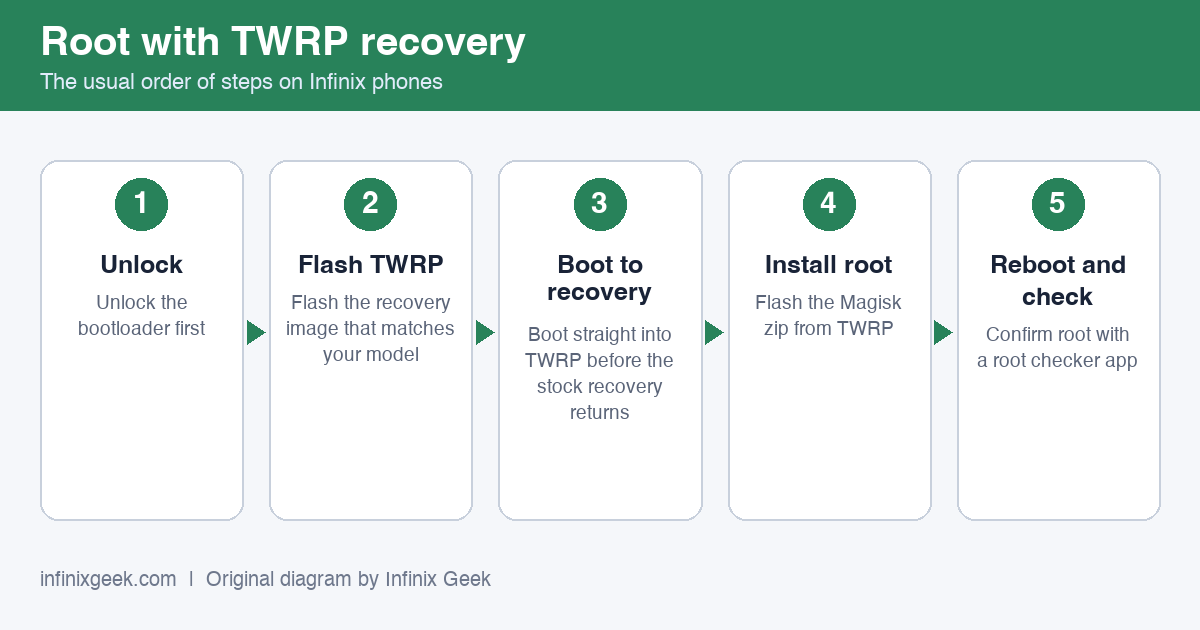
This is a legacy guide written in 2018 for the Infinix Hot 6 and Hot 6 Pro on its original Android version. We have not re-tested it on current firmware, and it is not meant for newer Infinix phones.
- It wipes your phone. Unlocking the bootloader erases all data. Back up anything you want to keep first.
- It can stop your phone booting and may affect your warranty. Have the stock firmware for your exact model ready before you start.
- Match your model exactly. Check the model code under Settings > About phone. Never flash a recovery, ROM or file made for a different model.
- If an unlock command fails (for example “unknown command” or “FAILED”), stop. Newer phones use
fastboot flashing unlock, older onesfastboot oem unlock, and some firmware does not allow unlocking at all. - Use maintained tools. TWRP builds for these phones are unofficial community ports, and SuperSU is no longer maintained. Magisk is the current root tool.
It is not an official release from Team Win. The TWRP Recovery Version for Infinix Hot 6 and Hot 6 pro is 3.1.6 which has a clean material Design, Touch Screen Support, and Encryption mode.
If you are a Hot 6 or Hot 6 pro user, then this is great news for you. Rooting your Infinix device will allow you to flash different Custom MODs, ROMs, and such stuff onto the device.
If you have an Hot 6 or Hot 6 pro and want to gain root access on them, then don’t worry, we have got you covered here.
Android is the most advanced mobile operating system ever made and it’s getting better and better with time. Android users can root their device to get the most of it.
Rooting an android is not that difficult as it seems. Infinix Hot 6 and Hot 6 pro gives you additional benefits like installing special apps, flash custom ROMs, you can streamline your phone performance and many extra features. Share on X The real performance of an Android smartphone can only be unlocked once it is rooted.
As it is an Android smartphone and comes with an unlockable bootloader, it can be rooted easily and now there is a working TWRP recovery made available for the device.
Follow the steps given below to Root your Infinix Hot 6 and Hot 6 pro and Install Recovery.
Rooting Infinix Hot 6 and Hot 6 Pro
Infinix Hot 6 and Hot 6 pro come equipped with a 6.0 inches HD+ IPS display with 1420 x 720 screen resolution. The devices run Android 8. 0 Oreo Out of the box. They’re is powered by a 1.4GHz Quad-Core, Qualcomm Snapdragon SDM 425, Adreno 308 processor coupled with 2GB and 3GB of RAM, 16GB and 32GB of Internal Storage consecutively which can be expanded up to 128GB.
The Infinix Hot 6 and Hot 6 pro sport a 13MP + 2MP, Auto-Focus + Full-Focus, Dual-Flash camera on the rear and 5MP, Full-Focus, LED Flash camera. The device houses a non-removable Li-Ion 4000 mAh battery
Rooting may seem very difficult but it is not. In the earlier days, users were afraid to root their device as there were not many guides available and the process was very hard, but now things have changed.
Nowadays, rooting is very simple and can be achieved in few minutes. First, you have to unlock the bootloader, after which you can install TWRP recovery. Once TWRP is installed, you can root the device.
Now here we come with a full working guide on how to install TWRP Recovery and Root Infinix Hot 6 and Hot 6 Pro.
While rooting you have to be very careful and process with great caution, anything wrongs you may get your device bricked.
If you are new to TWRP recovery and rooting then here we first share some facts about Android rooting.
What is Rooting An Android Device Mean?
Rooting is the process of gaining full admin control of the Android device. You can use the device to its full potential.‘Rooting’ means giving yourself special privilege or “root permissions” on your phone. It’s similar to running plus grams as administrators in Windows.
After rooting your device you can install different MODs, kernel, ROMs on your device. You can install latest (like the Android 8.0 Oreo) On old device by installing third party ROMs like .
You can overclock the CPU and GPU of your device to get the best performance. You can hibernate any app you want. You can underclock the CPU to get better battery life.
What Is TWRP Recovery and Some of its benefits?
Team Win Recovery Project ( TWRP ) is an open-source software custom recovery image for Android-based devices. It provides a touchscreen-enabled interface that allows users to install third-party firmware and back up the current system, functions often unsupported by Stock recovery images.
It is the most popular Android custom recovery. It replaces the stock recovery On Android devices. It comes with many extra features compared to the stock recovery. It needs the bootloader to be unlocked.
Pre-Requirements
Download Infinix Hot 6 and Hot 6 pro TWRP Recovery Image.
Get Latest SP Flash Tool (http://spflashtool.com/).
Download and Install MTK Vcom Drivers (see our Infinix USB drivers guide).
Fully Charged Windows Computer and USB Cable.
SuperSU.Zip (SuperSU is no longer maintained; the current alternative is Magisk, from its official GitHub page).
Make sure battery percentage is more than 60%
Make sure you have installed USB Drives on your PC.
Install ADB & Fastboot drivers on your computer.
First of all you need to unlock the bootloader. The process goes thus.
Warning: Unlocking your bootloader will perform a factory reset on your device, please backup all of your important data before proceeding.
- Go to Settings > About Phone > tap on Build Number 7 times, until Developer Mode is activated.
- Now go to Settings > Developer Options > Enable USB Debugging
and OEM Unlocking.
- Connect your Infinix Hot 6 or Hot 6 pro to your PC via USB, and accept the ADB pairing dialogue on your phone’s screen.
- Go into the main folder of your ADB installation, hold Shift + right click, and select “ Open a Command Window Here”.
- In the ADB command window, type the following command: adb devices
- If the ADB connection is successfully recognized, the console will display your Infinix Hot 6 or Hot 6 pro’s serial number. If not, you may need to troubleshoot your ADB installation or USB connection.
- If the connection was recognized, go ahead and type into the ADB window: adb reboot bootloader
- This will reboot your Infinix device to the bootloader menu – from here, type into the ADB console:
fastboot oem unlock
- Now just follow the on-screen instructions on your phone to unlock the bootloader. When its complete, you can hold the Power button for about 10 seconds to initiate a reboot to the Android system.
Second Thing to do is install TWRP Recovery
- Download the TWRP and Magisk files.
- Place the TWRP .img file inside the main directory of your ADB installation, and copy the Magisk .zip file to your phone’s external SD card.
- While your Infinix Hot 6 or Hot 6 pro is connected to your PC via USB, launch a new ADB command window.
- Now type into the ADB command window: fastboot flash recovery TWRP_recovery.img
- After it successfully flashes TWRP, type into the ADB window:
fastboot reboot recovery
- Your Infinix device should now reboot into TWRP recovery. It will most likely ask for a password due to phone encryption – cancel it and tap Keep Read Only. Magisk does not need changes to /system, and modifying it can stop the phone booting.
- Important: Before proceeding, you should go to Backup > Boot.Img, so you will always have a copy of your un-rooted boot.img and you can flash OTA .zip files at a later date, without needing to hunt for a compatible stock boot .img for your Infinix device through the internet.
- From the TWRP main menu, go to Flash > SD Card > choose the Magisk .zip you transferred earlier. Swipe right to flash it.
- After Magisk has been flashed, reboot to the system. Only if the phone keeps booting back into TWRP, go to Wipe > Format Data and type yes. This erases everything on the phone. Keep the file system TWRP proposes: do not switch to F2FS unless a guide for your exact model says it is supported, because an unsupported file system can stop the phone booting.
- Once your data has been formatted, you can now Reboot to Recovery, and your storage will be mounted. You can now reboot to Android system, and enjoy your newly rooted Infinix Device!
Conclusion
Rooting your device turns you into its owner in the truest sense of the word, as it puts you in charge of every aspect of your phone. It also takes you out of a normal handset’s lifespan, allowing you to extend the longetivity of a device via custom ROMs, tweaks, and up to date patches thus losing your phone’s warranty.
That is, in fact, the greatest benefit and downside of Android itself. It gives you immense power, but you also have to be careful with that power. Your decision should be based on your answers to these questions:
- Are you willing to risk facing and trying to fix the disadvantages of rooting your device?
-
Have you made a backup for your device before it is attempted to be rooted?
-
Have you understand this simple descriptive article on how to root your device?
If your answer to these three questions is a ‘yes’, then you should be ready to handle rooting your device and facing the benefits and consequences. But if your answer is ‘no’ to two or all three questions, then you should probably think a few more times before you take the leap.
More Infinix guides
- Before you start: install the Infinix USB drivers and keep the stock ROM handy as a backup plan.
- How to Unlock Bootloader on Infinix Hot 6 and Hot 6 Pro
- How to Unlock Bootloader on Infinix Hot 6X & Install TWRP Recovery
- How To Root Infinix Hot 7 | Unlock Bootloader & Install TWRP
- How to Root Infinix Hot 5 | Unlock Bootloader & Install TWRP Recovery
- Root & unlock guides for all Infinix phones
custom rom please
Hi Brain,
Thanks for stopping by.
Am sorry to inform you that the official Hot 6 custom rom isn’t out yet. Anytime soon when its released, i will add it to the list here. https://infinixgeek.com/infinix-firmware-for-download-all-models/
Cheers
Hello kwema, I have really tried to root my infinix hot 6 and install it’s twrp but I have failed , please could you help me even if it’s with a video or pictures I could really appreciate thanks in advance
where’s the twrp link for hot6 pro
Kindly check in the downloads section.
Hi Dennis,
What error are you exactly getting on the screen?
I experienced an error in getting the recovery image for infinix hot 6, also on getting on with adb and fast boot installation guide. But to be honest it’s the whole process. Maybe if you could help in giving out pictures,it could be easier
Am sorry to know that you’re going through this.
Kindly follow this guide step by step. You may also consider using different other methods on how to unlock bootloader using this guide https://infinixgeek.com/unl%D0%BE%D1%81k-bootloader-on-infinix-devices/. There are four different methods.
Hoping it helps.
I have already unlocked the bootloader,what should I do next?
Thank you Dennis for you feedback.
After successfully unlocking your bootloader, kindly install the TWRP recovery. Please remember to backup your data.
I can give you my number 254795984064,please send me a video how to do it. I lost all my data and I really need to root my phone please,thank you
Unfortunately, i don’t offer any video support yet. Checkout youtube.
Hi Kwema,
Any guide on routing infinix hot 6x? I’ve not found anything and works really want to root my hot 6x to get a nice root firewall
Uploading it soon.