
Infinix Battery Draining Fast? How to Fix It
Find what's draining your Infinix battery and fix it, plus how to tell when the battery needs replacing.
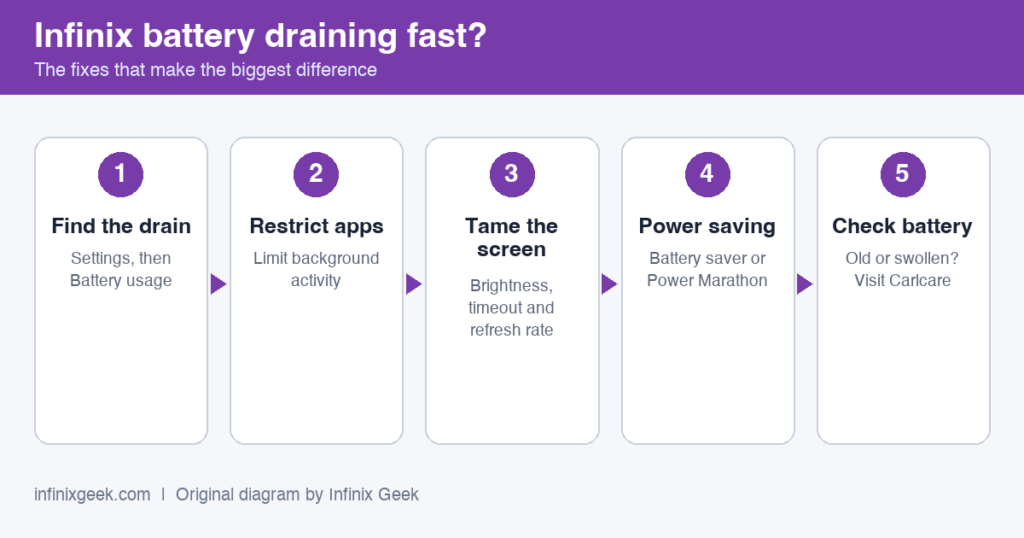
Infinix phones are known for big batteries, so it’s frustrating when yours suddenly can’t last a day. The good news is that most fast battery drain comes from settings and apps you can change, not from a faulty battery. This guide shows how to find what’s using the power, the XOS settings that make the biggest difference, and how to tell when the battery itself needs replacing.
These fixes use the standard Android battery tools and the power-saving features in XOS. Menu names change between XOS versions; if a setting isn’t where we say, search for it in Settings. We don’t give “secret code” tricks or promise to double your battery life, because no setting can. Sources are listed at the end.
The short answer
- Open Settings > Battery and see which apps use the most power.
- Restrict or uninstall the apps that drain power in the background.
- Lower the screen brightness and the screen timeout, and use dark mode.
- Turn on the battery saver, or Power Marathon when you’re running low.
- Install the latest XOS update, and update your apps.
- If the phone is over two years old and nothing helps, have the battery checked at Carlcare.
Step 1: Find out what’s draining the battery
Open Settings > Battery and look at the battery usage list. It shows which apps used the most power since the last full charge, and whether they used it while you were using them or in the background.
- The screen near the top is normal. The display is usually the biggest user of power.
- An app you barely used near the top is the problem. Social media, shopping and “cleaner” apps are common culprits.
- “Mobile network standby” or “Phone idle” high on the list usually means a weak signal. The phone uses more power searching for the network.
Step 2: Stop apps draining power in the background
Tap a high-usage app in the battery list. Choose Restrict, or set Background activity to off or restricted. The app still works when you open it, but can’t run freely when you aren’t using it. Don’t restrict messaging apps if you need their notifications on time.
Also uninstall apps you don’t use, especially:
- Cleaner, booster and battery-saver apps. They often run constantly and show ads, which uses more power than they save. XOS already has these tools built in.
- Apps installed from outside the Play Store, which may contain adware that runs in the background.
- Duplicate apps, such as two browsers or two music players.
If you see pop-up ads on the home screen or lock screen, an app is running in the background to show them. Uninstalling it saves battery and data.
Step 3: Change the screen settings
The screen uses more power than anything else, so these changes make the biggest difference:
- Brightness: turn on adaptive or auto brightness, or keep it below about half indoors.
- Screen timeout: set it to 30 seconds or 1 minute in Settings > Display.
- Dark mode: on phones with an AMOLED screen, such as many Note and Zero models, dark mode saves real power. On LCD screens, common in the Hot and Smart series, it saves very little.
- Refresh rate: if your phone has a 90 Hz or 120 Hz screen, setting it to 60 Hz or to automatic saves power, at the cost of smoother scrolling.
- Always-on display and lock screen wallpapers that change automatically also use power. Turn them off if you don’t need them.
Step 4: Use the XOS power-saving modes
Open Settings > Battery (or Power saving):
- Power saving mode limits background activity and visual effects. You can set it to switch on automatically at a certain battery level, such as 20%.
- Power Marathon is XOS’s emergency mode. Its ultra power saving option limits the phone to calls, messages and contacts, which can stretch a few percent of battery a long way. Use it when you’re low and far from a charger.
Step 5: Connections and location
- 5G: if your area has weak 5G coverage, the phone keeps switching between networks. Set the preferred network to 4G in Settings > Mobile network.
- Location: check which apps have permission to use location “all the time” in Settings > Location, and change them to “only while using the app”.
- Wi-Fi, Bluetooth and hotspot: turning these off when you aren’t using them helps a little. Leaving Wi-Fi on at home is usually better than using mobile data, which uses more power.
Step 6: Update the phone and apps
XOS updates often include battery fixes. Check Settings > System update and install anything available while the phone is charged and on Wi-Fi. Update your apps from the Play Store too, because a buggy app version can cause sudden drain.
It’s normal for the battery to drain faster for a day or two after a big update while the phone re-optimises its apps. If it’s still bad after three days, continue with the next step.
Step 7: Is the battery worn out?
Every lithium battery loses capacity as it ages. After about two years of daily charging, most phones hold noticeably less charge. Signs that your battery is worn out:
- The percentage drops suddenly, for example from 30% to 5%, or the phone shuts off with charge still showing.
- The phone only works while plugged in.
- The battery gets hot during normal use or charging.
- The back of the phone or the screen is bulging. Stop using and charging the phone straight away and take it to a service centre, because a swollen battery can catch fire.
Carlcare can test the battery and fit an original replacement. Avoid cheap unbranded batteries; they often have far less capacity than they claim.
Charging habits that keep the battery healthy
- Use the original charger and cable, or a good-quality one with the same rating.
- Avoid letting the battery reach 0% often. Charging between about 20% and 80% is gentlest.
- Don’t charge under a pillow, in direct sun or while gaming heavily. Heat is what damages batteries most.
- If your phone has a battery-care or charging-protection option in Settings, turn it on.
Frequently asked questions
Why does my Infinix battery drain overnight?
Usually a background app or a weak network signal. Check the battery usage list in the morning: the app at the top of the background list is the cause. Turning on airplane mode at night stops it completely if you don’t need calls.
Do battery saver apps work?
Not really. XOS already has power saving built in. Third-party saver and cleaner apps often run all the time and show ads, which makes drain worse.
Is fast charging bad for the battery?
Not when you use the charger designed for your phone. The phone controls the charging speed. Heat matters more than speed, so avoid charging in hot places.
Will a factory reset fix battery drain?
Sometimes, if the cause is an app or a settings problem you can’t find. Try the steps above first. Our factory reset guide explains how to back up first.
Sources
- Android battery usage and restricting apps: Google Android Help
- XOS Power Marathon and ultra power saving: HelpForSmartphone
- Background restriction on Infinix: Technobezz
Looking for a phone with a bigger battery? See the best Infinix phones in 2026.